
Linksys PLEK500 – страница 4
Инструкция к Linksys PLEK500
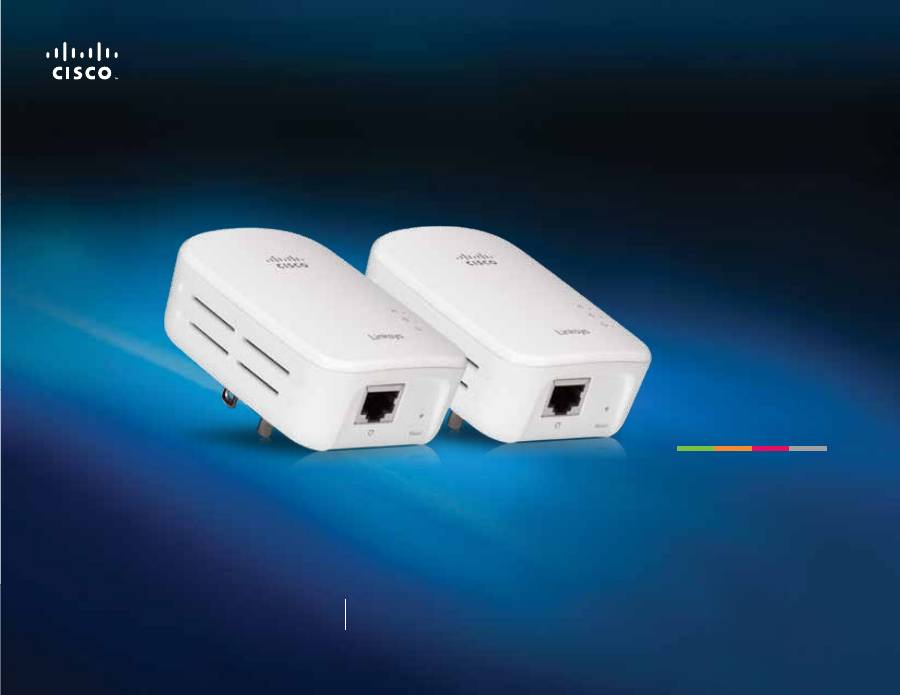
User Guide
Linksys PLEK500
Powerline Networking Adapter

1
Getting Started
PLEK500 Powerline Network Adapter
Overview . . . . . . . . . . . . . . . . . . . . . . . . . . . . . . . . . . . . . . . . . . . 3
Features . . . . . . . . . . . . . . . . . . . . . . . . . . . . . . . . . . . . . . . . . . . . . . . . . . . . . . . . . . . . . . . .3
How .Powerline .networking .works . . . . . . . . . . . . . . . . . . . . . . . . . . . . . . . . .4
Example installation 4
Installing .the .Powerline .Network . . . . . . . . . . . . . . . 5
Installation .overview . . . . . . . . . . . . . . . . . . . . . . . . . . . . . . . . . . . . . . . . . . . . . . . . .5
Tips 5
How .to .share .Internet .access . . . . . . . . . . . . . . . . . . . . . . . . . . . . . . . . . . . . . . . .5
How .to .add .a .Powerline .adapter .to .your .network . . . . . . . . . . . . . . .5
Setting .up .advanced .security . . . . . . . . . . . . . . . . . . . . . . . . . . . . . . . . . . . . . . .6
Advanced .Configuration . . . . . . . . . . . . . . . . . . . . . . . . . 6
Troubleshooting . . . . . . . . . . . . . . . . . . . . . . . . . . . . . . . . . . 8
Specifications . . . . . . . . . . . . . . . . . . . . . . . . . . . . . . . . . . . . . 9
Contents
2
Getting Started
PLEK500 Powerline Network Adapter
Overview
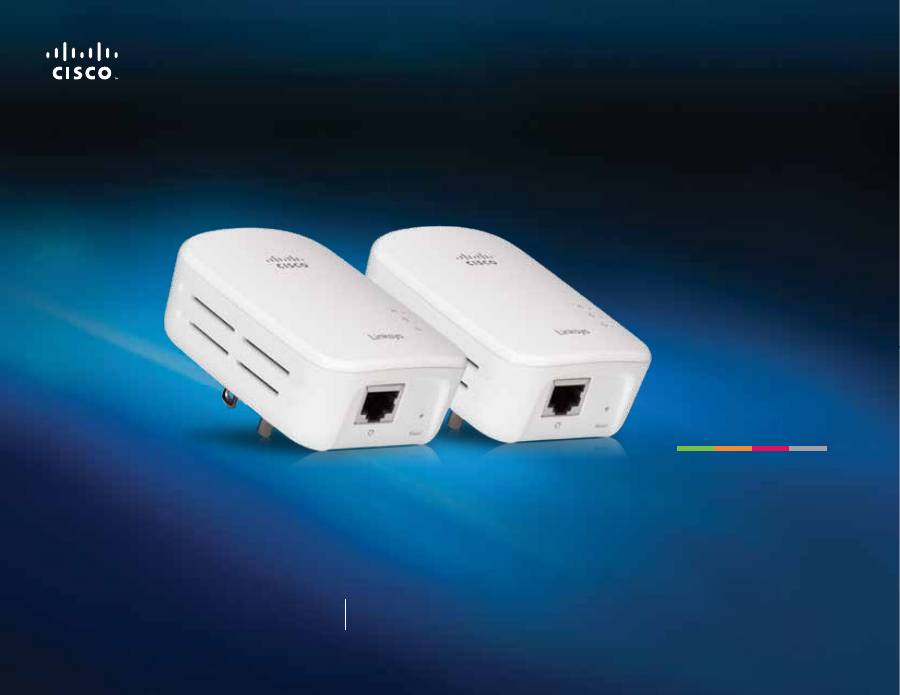
Thank you for choosing this Linksys Powerline network adapter kit These
adapters provide easy setup and let you connect wired network devices to
your home network
•
The
PLEK500
kit includes two PLE500 single-port Powerline adapters
You need at least two Powerline adapters to create a Powerline network
Connect one Powerline adapter to your network router, and connect the other
adapter to a computer or other network device in any room of the house
You can find more help from our award-winning, 24/7 customer support at
Linksys.com/support
.
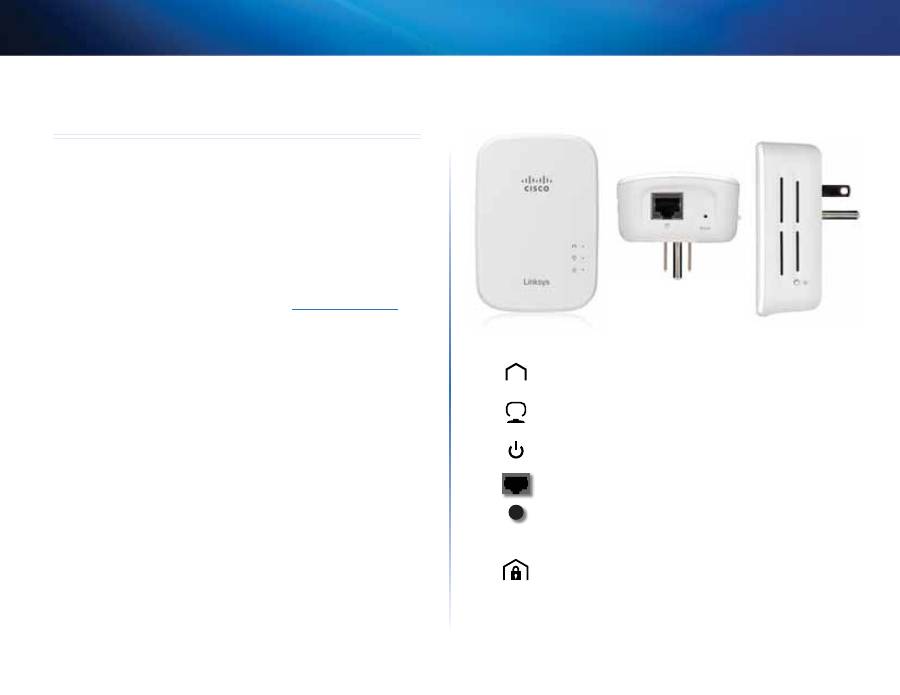
Features
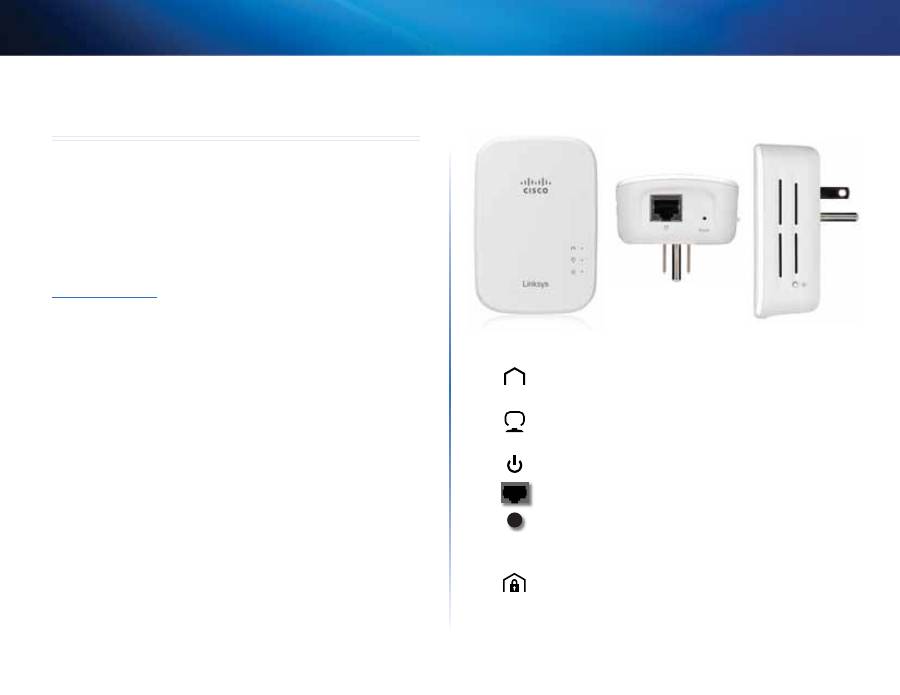
Powerline
—The Powerline LED turns on when the adapter is
connected to the Powerline network The LED flashes to indicate
network activity
Ethernet
—The Ethernet LED turns on when a wired network device
is turned on and connected to the adapter’s Ethernet (network) port
The LED flashes to indicate network activity
Power
—The power LED turns on when the adapter is powered on
Ethernet
—These connect to computers or other network devices
Reset
—To restore the factory default settings (including the
advanced security settings and the network password), use a
pointed object to press and hold the
Reset
button for at least ten
seconds
HomePlug Simple Connect Button
—Configures advanced security
(the network password) for your Powerline network
3
Getting Started
PLEK500 Powerline Network Adapter
How .Powerline .networking .works
Electrical wiring runs through your home or office, carrying power to electrical
outlets in every room The typical wired Ethernet network uses Ethernet
network cables to connect your wired network devices A Powerline network
uses your existing household wiring as the wiring for your Powerline network
To create your Powerline network, use two or more Powerline adapters Each
device on your Powerline network requires a connection to a Powerline adapter
•
The
PLE500
has one Ethernet port One of these devices is typically used
in a Powerline network to connect your network’s wireless router to the
household wiring You can also use one of these in any room to connect
one wired Ethernet device to your Powerline network
When adding a Powerline network to an existing network, the connections
between the Internet, modem, and router stay the same
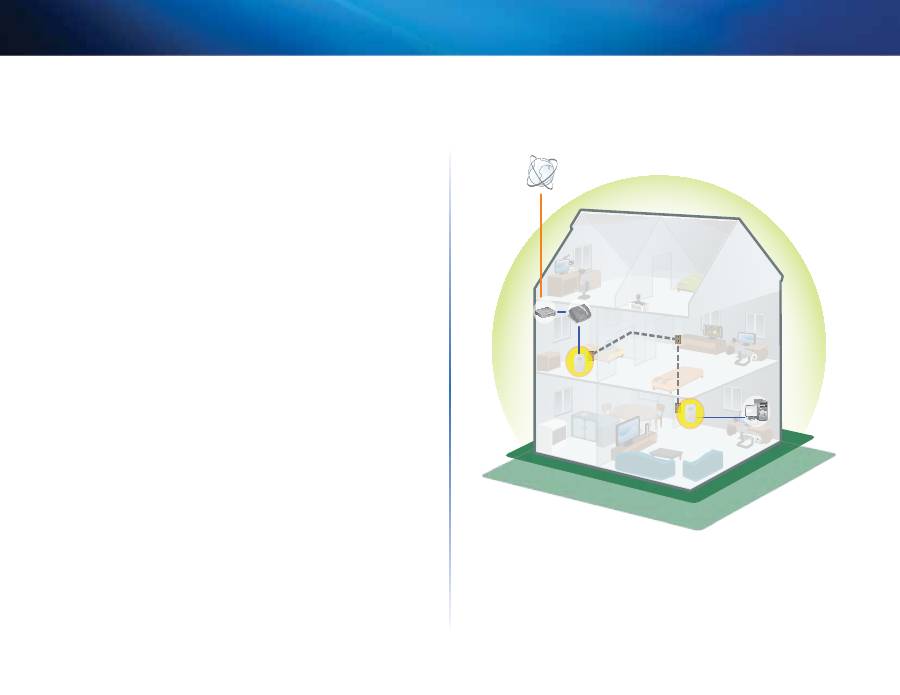
Example .installation
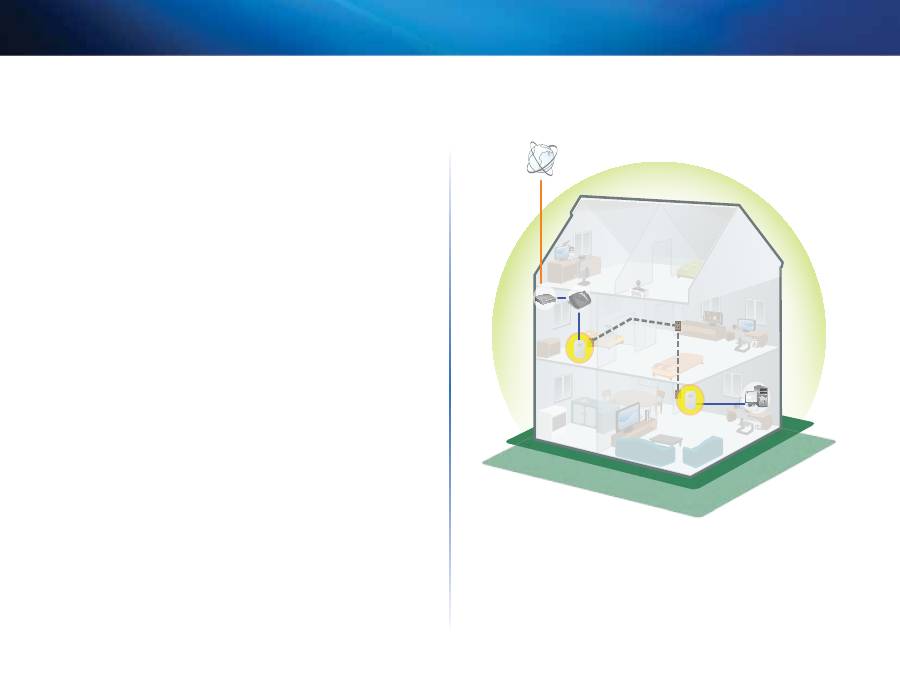
This diagram shows a basic Powerline network in a house The router upstairs
is connected to a Powerline adapter, which is plugged into an electrical outlet
Downstairs, the computer is connected to a Powerline adapter, which is
plugged into an electrical outlet
Using the household wiring of the home, the router expands the local network
to include the gaming console and desktop computer in the living room
Internet access, files, and printers can be shared between the computers and
other networked devices For online gaming, you can play downstairs in the
comfort of your living room, while using the high-speed Internet connection
of the router and modem upstairs
Modem
Router
Computer
Gaming
Console
PLE500
PLE500

4
Getting Started
PLEK500 Powerline Network Adapter
Installing the Powerline Network
Installation .overview
To set up your Powerline network, you should:
•
Make sure you already have Internet access and a working home network
•
Share Internet access with your Powerline network
•
Install Powerline adapters in each room where you want to connect a
wired network device
Tips
•
If possible, connect each Powerline adapter directly to a wall power
outlet, and not to an extension cord, power strip, or surge protector
•
If a Powerline adapter must be installed onto a power strip, make sure
that no other electronic devices are connected to the same power strip
•
For advanced adapter configuration, see “Advanced Configuration” on
page 5
How .to .share .Internet .access
To share Internet access over the Powerline network, connect your router to
the Powerline network (typically with a single-port Powerline adapter such as
the PLE500)
To connect your wireless router to your Powerline network:
1.
Connect your single-port Powerline adapter to a power outlet near your
wireless router The adapter’s power LED turns on
2.
Use the included Ethernet network cable to the port on the adapter
and to an available port on the back of the wireless router The adapter’s
Ethernet LED turns on You are now ready to extend your Powerline
network to the rest of your home
NOTE
For advanced security setup, see “Setting up advanced security” on
page 5
How .to .add .a .Powerline .adapter .to .your .
network
After your existing network’s router is connected to a Powerline adapter, you
can add adapters elsewhere in your home
To connect an additional Powerline adapter:
1.
Connect the adapter to a power outlet near the network device(s) you
want to connect The adapter’s power LED turns on The Powerline LED
flashes, then stays on when the connection is finished
2.
Connect the network device’s network cable to an available port on the
Powerline adapter The adapter’s Ethernet LED flashes, then stays on
when the connection is finished
5
Getting Started
PLEK500 Powerline Network Adapter
Setting .up .advanced .security
NOTE
The devices connected to the Powerline adapters will temporarily
lose Internet connection during the security setup
To configure each network adapter with advanced security:
1.
On the first adapter, press and hold the HomePlug Simple Connect
button
for at least one second, until the Powerline LED
begins
flashing slowly The adapter creates a new network key for the Powerline
network to use
2.
On each other adapter, press and hold the HomePlug Simple Connect
button
for at least one second, until the Powerline LED
begins
flashing slowly When the LED stops flashing, the new network key has
been shared with that adapter
NOTE
The devices connected to the adapters will regain Internet access
within five minutes
Advanced Configuration
If you’re having difficulty connecting the adapters, or if you’d like to set more
advanced options, use the advanced configuration utility
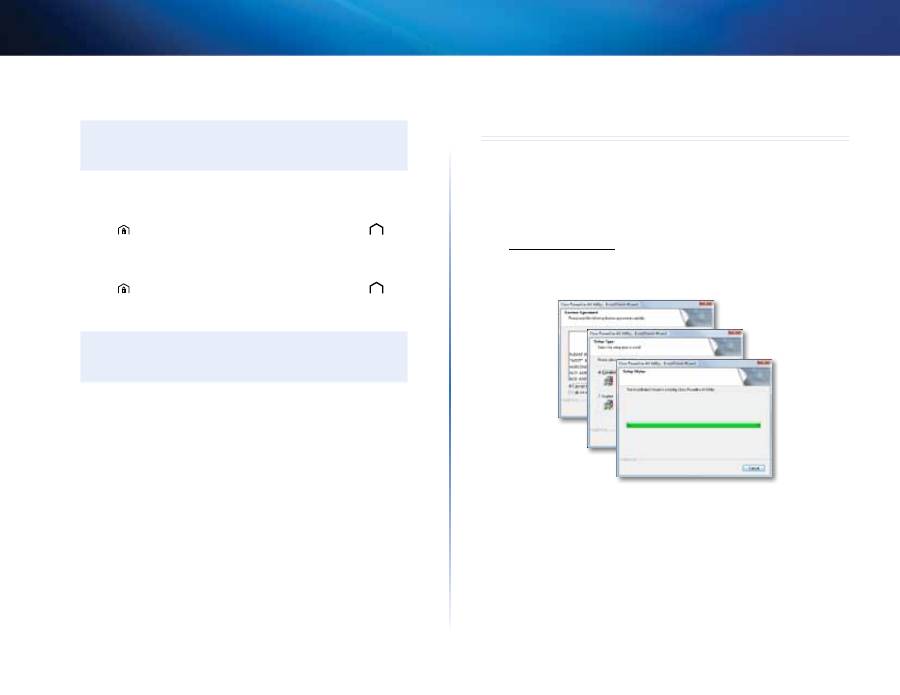
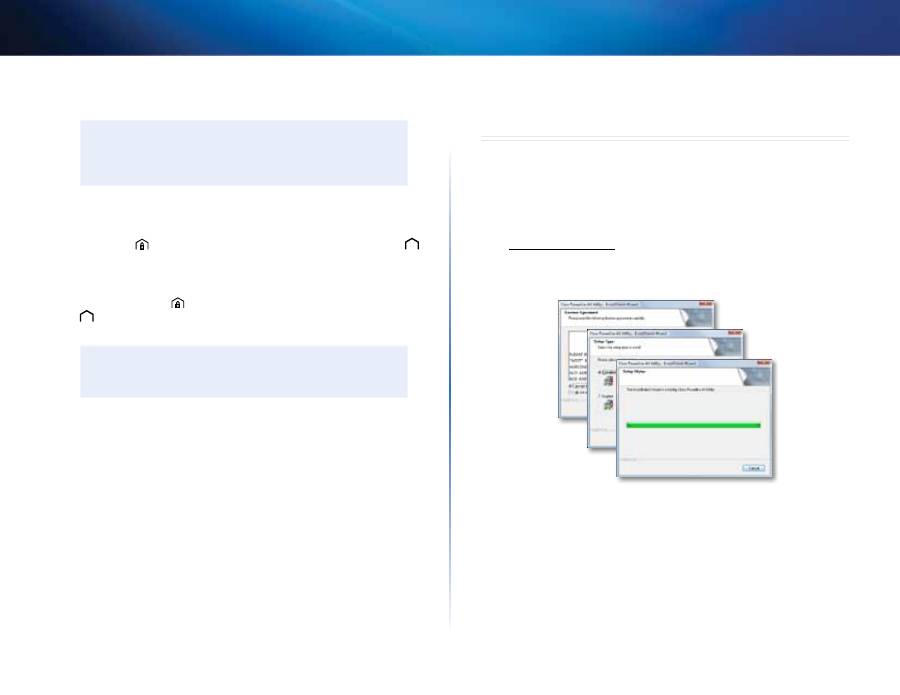
To install the configuration utility:
1.
Download the utility from the product’s Support page at
Linksys.com/support
2.
Run the setup file you downloaded, then follow the on-screen
instructions
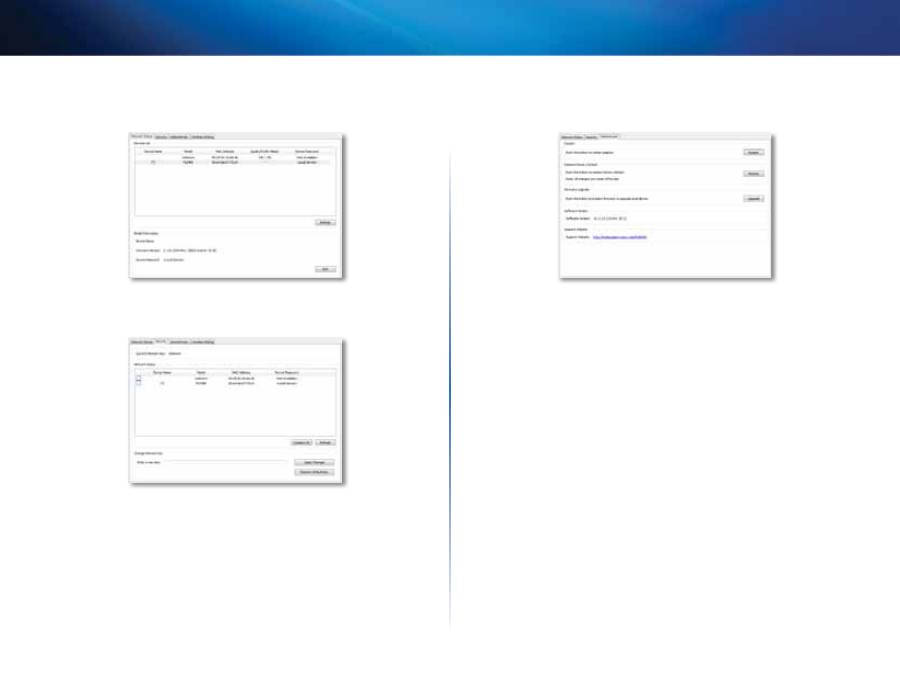
To use the configuration utility:
1.
After the utility is installed:
On Windows systems:
a.
Click
Start
,
All Programs
,
Cisco Systems
, then
Cisco Powerline AV2
Utility
The utility opens
On Macintosh systems:
a.
Double-click the
CD
icon on your desktop, then double-click the
Setup
icon
6
Getting Started
PLEK500 Powerline Network Adapter
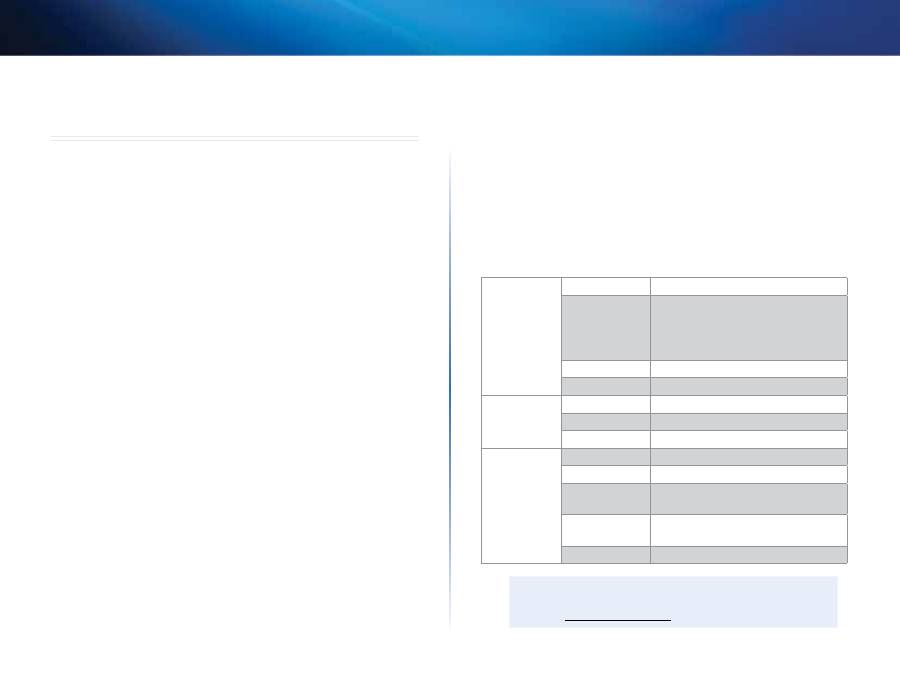
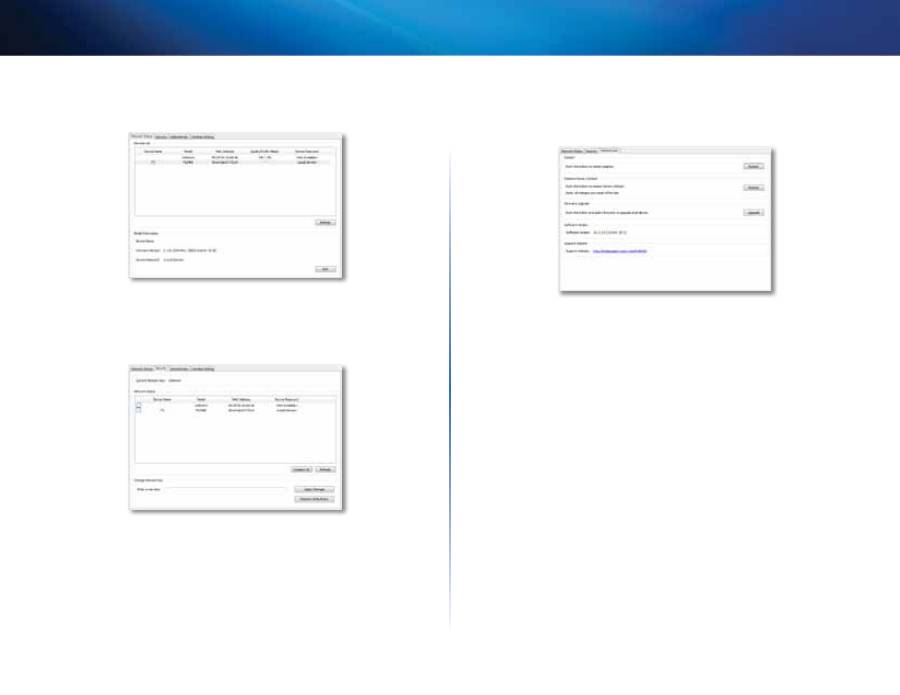
2.
Click the
Network Status
tab to view details of the Powerline adapters
that are connected to your network
3.
Click the
Security
tab to manually change the network key for each
device If you need to revert to the default key, click
Restore Default Key
4.
Click the
Administrator
tab to restart an adapter, restore factory defaults,
or upgrade the adapter’s firmware
Settings are applied to the adapter(s) immediately Close the window to
exit the utility
7
Getting Started
PLEK500 Powerline Network Adapter
Troubleshooting
None of the LEDs turn on after you installed the Powerline adapter.
Follow these instructions:
1.
Disconnect the adapter from the power outlet
2.
Disconnect the Ethernet network cable from the adapter
3.
Wait five seconds
4.
Re-connect the Ethernet network cable to the adapter
5.
Re-connect the adapter to the power outlet
6.
If this solution does not work, make sure that the electrical outlet is
working properly Plug a different device into the outlet, and try to turn
it on
The Ethernet LED does not light up on the Powerline adapter.
When the Ethernet port detects a local network connection, the Ethernet LED
should turn on Follow these instructions:
1.
Make sure that the Ethernet network cable is securely connected to the
adapter
2.
Make sure that the Ethernet network cable is securely connected to the
computer or other network device
3.
Make sure that the Ethernet adapter on your computer is working
properly Refer to Windows Help for more information
You cannot connect to other computers on your local network or to the
Internet.
If you did not set up advanced security for the Powerline network, follow these
instructions:
1.
Locate the Powerline adapter connected to the computer that cannot
connect
2.
On the right side of the adapter, use a pointed object to press and hold
the
Reset
button for at least ten seconds This resets the adapter to its
factory default settings
If you have set up advanced security for the Powerline network, check the
following:
•
Make sure all adapters on the Powerline network have been configured
with the same network password The network password must be
identical in order for them to communicate with each other See “Setting
up advanced security” on page 5 or “Advanced Configuration” on page 5
•
If you are adding a new adapter to a pre-existing Powerline network
with a unique network password, follow the instructions in “Advanced
Configuration” on page 5
The LEDs are flashing and I don’t know what it means.
Refer to the following table of LED behavior to help diagnose the problem:
Powerline LED
Off
Not connected to Powerline network
Flashing fast
(Green) Send/Receive data PHY rate
>15 Mbps
(Yellow) Send/Receive data PHY rate
<15 Mbps
Flashing slow
Pairing
Solid
Connected to Powerline network
Ethernet LED
Off
Not connected to Ethernet network
Flashing
Send/Receive data
Solid
Connected to Ethernet network
Power LED
Off
Device power off
Solid
Device power on and ready
Flashing fast
momentarily
Factory default
Flashing fast for
one minute
Pairing error/system error
Flashing slow
Device in standby mode
WEB
If your questions are not addressed here, go to the Linksys Support
website at
Linksys.com/support

8
Getting Started
PLEK500 Powerline Network Adapter
Specifications
Model
PLE500
Standards
HomePlug AV2
Ports
Gigabit Ethernet (10/100/1000)
Buttons
Easy Connect, Reset
LEDs
Powerline, Ethernet, Power
Cabling Type
RJ-45 (1)
Security Features
128-Bit AES Link Encryption
Security Key Bits
128
Modulation schemes
4096/1024/256/64/16/8-QAM, QPSK, BPSK,
ROBO
Environmental
Dimensions
3 57 × 2 48 × 1 36 inches
(90 6 × 63 0 × 34 5 mm)
Weight
3 7 oz (105 g)
Power
100-240V AC, 50-60 Hz
Certification
FCC, IC, CE, RoHS
Operating Temp
32ºF to 104ºF (0 to 40ºC)
Storage Temp
-4ºF to 158ºF (-20 to 70ºC)
Operating Humidity
10 to 85% Noncondensing
Storage Humidity
5 to 90% Noncondensing
Specifications are subject to change without notice
3425-00158A
130401MS
Cisco, the Cisco logo, and Linksys are trademarks or registered trademarks of Cisco and/or its affiliates in the United States and other countries
A listing of Cisco’s trademarks can be found at www cisco com/go/trademarks All other trademarks mentioned in this document are the property of their respective owners
© 2013 Cisco and/or its affiliates All rights reserved
Visit
linksys.com/support
for award-winning 24/7 technical support
Guía del usuario
Adaptador de red PowerLine
Linksys PLEK500

2
Primeros pasos
Adaptador de red PowerLine PLEK500
Descripción general . . . . . . . . . . .3
Características . . . . . . . . . . . . . . . . . . . 3
Cómo funciona la red PowerLine . . . . . . . . . . . . 4
Instalación de ejemplo . . . . . . . . . . . . . . . . . . . . . . 4
Instalación de la red PowerLine . . . . . .5
Descripción general de la instalación . . . . . . . . . . 5
Consejos . . . . . . . . . . . . . . . . . . . . . . . . . . . . 5
Cómo compartir el acceso a Internet . . . . . . . . . . 5
Cómo añadir un adaptador PowerLine a la red . . . . . . 5
Configuración de la seguridad avanzada . . . . . . . . 6
Configuración avanzada . . . . . . . . .6
Resolución de problemas . . . . . . . .8
Especificaciones . . . . . . . . . . . .9
Contenido
3
Primeros pasos
Adaptador de red PowerLine PLEK500
Descripción general
Gracias por elegir este kit de adaptador de red PowerLine de Linksys . Nuestros
adaptadores se configuran fácilmente y permiten conectar dispositivos en red
conectados por cable a su red doméstica .
•
El kit
PLEK500
incluye dos adaptadores PowerLine PLE500 de un solo
puerto .
Necesita como mínimo dos adaptadores PowerLine para crear una red
PowerLine . Conecte uno de ellos al router de red y el otro a un equipo u otro
dispositivo de red de cualquier habitación de la casa .
Puede obtener más ayuda de nuestro galardonado servicio de asistencia al
cliente las 24 horas del día, 7 días de la semana, en
Linksys.com/support
.
Características
PowerLine
: La luz de PowerLine se enciende cuando el adaptador se
conecta a la red PowerLine . Parpadea para indicar la actividad de la
red .
Ethernet
: La luz de Ethernet se ilumina cuando se enciende un
dispositivo de red con cables conectado al puerto de Ethernet (red)
del adaptador . Parpadea para indicar la actividad de la red .
Alimentación
: La luz de alimentación se ilumina al encender el
adaptador .
Ethernet
: Sirve para establecer la conexión con ordenadores u otros
dispositivos de red .
Modo de Reinicio
: para restablecer los parámetros predeterminados
de fábrica (incluidos los parámetros avanzados de seguridad y la
contraseña de la red), use un objeto puntiagudo para mantener
pulsado el botón de
modo de reinicio
al menos diez segundos .
Botón de conexión sencilla HomePlug
: configura la seguridad
avanzada (la contraseña de red) de la red PowerLine .
4
Primeros pasos
Adaptador de red PowerLine PLEK500
Cómo funciona la red PowerLine
Las líneas de alimentación del hogar u oficina transmiten la alimentación
eléctrica a las tomas de corriente de cada habitación . Una red Ethernet con
cables tradicional utiliza cables de red Ethernet para conectar los dispositivos
de red con cables . Una red PowerLine utiliza líneas de alimentación existentes
como el cableado para la red PowerLine .
Para crear la red PowerLine, utilice dos o más adaptadores PowerLine . Cada
dispositivo de la red PowerLine necesita conexión a un adaptador PowerLine .
•
El
PLE500
tiene un puerto Ethernet . Para conectar el router inalámbrico
de la red al cableado de la casa suele usarse uno de estos dispositivos
en una red PowerLine . También puede usar uno en cualquier habitación
para conectar un dispositivo Ethernet con cable a la red PowerLine .
Cuando se añade una red PowerLine a una red existente, las conexiones entre
Internet, el módem y el router no cambian .
Instalación de ejemplo
El diagrama muestra una red PowerLine básica en una casa . El router en el
piso de arriba está conectado a un adaptador PowerLine que, a su vez, está
conectado a una toma de corriente . En el piso de abajo, el ordenador está
conectado a un adaptador PowerLine que, a su vez, está conectado a una toma
de corriente .
Al utilizar las líneas de alimentación del hogar, el router amplía la red local para
incluir la consola de videojuegos y un equipo de sobremesa en la sala de estar .
Se puede compartir el acceso a Internet, a los archivos y a las impresoras entre
los ordenadores y otros dispositivos de red . Para juegos en línea, puede jugar
con toda comodidad en la sala de estar del piso de abajo, mientras aprovecha
las ventajas de la conexión a Internet de alta velocidad del router y el módem
en el piso de arriba .
Módem
Router
Ordenador
PLE500
PLE500

5
Primeros pasos
Adaptador de red PowerLine PLEK500
Instalación de la red PowerLine
Descripción general de la instalación
Para instalar la red PowerLine, debe:
•
Asegurarse de que ya tiene acceso a Internet y una red doméstica
funcional .
•
Compartir el acceso a Internet con la red PowerLine .
•
Instalar adaptadores PowerLine en todas las habitaciones en las que
quiera conectar dispositivos en red con cable .
Consejos
•
Si es posible, conecte todos los adaptadores PowerLine directamente a
las tomas de la pared, no por medio de alargadores, regletas o protectores
de sobretensiones .
•
Si no puede evitar instalar un adaptador PowerLine en una regleta,
asegúrese de que no hay ningún otro dispositivo electrónico conectado
a la misma .
•
Para obtener más información sobre la configuración avanzada de los
adaptadores, consulte “Configuración avanzada“ en la página 6 .
Cómo compartir el acceso a Internet
Para compartir el acceso a Internet por la red PowerLine, conecte el router a la
red PowerLine (normalmente con un adaptador PowerLine de un solo puerto
como el PLE500) .
Para conectar el router inalámbrico a la red PowerLine:
1.
Conecte el adaptador PowerLine de un solo puerto a una toma de
corriente cerca del router inalámbrico . La luz de encendido del adaptador
se ilumina .
2.
Conecte el cable de red Ethernet al puerto del adaptador y a un puerto
disponible en la parte posterior del router inalámbrico . La luz Ethernet
del adaptador se ilumina . Ya puede ampliar la red PowerLine al resto de
su hogar .
NOTA
Para informarse sobre la configuración avanzada de la seguridad,
consulte “Configuración de la seguridad avanzada“ en la página 6 .
Cómo añadir un adaptador PowerLine a
la red
Una vez haya conectado el router de la red a un adaptador PowerLine, podrá
añadir adaptadores en el resto de la casa .
Para conectar un adaptador PowerLine adicional:
1.
Conecte el adaptador a una toma de corriente cerca de los dispositivos de
red que quiera conectar . La luz de encendido del adaptador se ilumina .
La luz PowerLine parpadea y, cuando la conexión finaliza, permanece
encendida .
2.
Conecte el cable del dispositivo de red a un puerto disponible en el
adaptador PowerLine . La luz Ethernet parpadea y, cuando la conexión
finaliza, permanece encendida .
6
Primeros pasos
Adaptador de red PowerLine PLEK500
Configuración de la seguridad avanzada
NOTA
NOTA: Los dispositivos conectados a los adaptadores PowerLine
perderán la conexión a Internet de forma temporal durante la
configuración de la seguridad .
Para configurar la seguridad avanzada en los adaptadores de red:
1.
En el primer adaptador, mantenga pulsado el botón de conexión sencilla
HomePlug
al menos un segundo hasta que la luz PowerLine
empiece a parpadear lentamente . El adaptador crea una nueva clave de
red para la red PowerLine .
2.
En el resto de adaptadores, mantenga pulsado el botón de conexión
sencilla HomePlug
al menos un segundo hasta que la luz PowerLine
empiece a parpadear lentamente . Cuando la luz deje de parpadear,
se habrá compartido la nueva clave de red con el adaptador .
NOTA
Los dispositivos conectados a los adaptadores recuperarán la
conexión a Internet a los cinco minutos .
Configuración avanzada
Si tiene dificultades para conectar los adaptadores o quiere configurar ajustes
más avanzados, use la utilidad de configuración avanzada .
Para instalar la utilidad de configuración:
1.
Descargue la utilidad de la página de asistencia del producto en
Linksys.com/support
.
2.
Ejecute el archivo de configuración descargado y siga las instrucciones
en pantalla .
Para usar la utilidad de configuración:
1.
Después de que la utilidad esté instalada:
En sistemas Windows:
a.
Haga clic en
Inicio
,
Todos los programas
,
Cisco Systems
y
Cisco
PowerLine AV2 Utility
. Se abrirá la utilidad .
En sistemas Macintosh:
a.
Haga doble clic en el icono de
CD
del escritorio . A continuación, haga
doble clic en el icono
Setup
(Configuración) .
7
Primeros pasos
Adaptador de red PowerLine PLEK500
2.
Haga clic en la ficha
Network Status
(Estado de la red) para ver los
detalles de los adaptadores PowerLine conectados a la red .
3.
Haga clic en la ficha
Security
(Seguridad) para cambiar de forma manual
la clave de red para cada dispositivo . Si necesita recuperar la clave
predeterminada, haga clic en
Restore Default Key
(Restaurar clave
predeterminada) .
4.
Haga clic en la ficha
Administrator
(Administrador) para reiniciar un
adaptador, restaurar los valores predeterminados de fábrica o actualizar
el firmware del adaptador .
Los ajustes se aplican de inmediato a los adaptadores . Cierre la ventana
para salir de la utilidad .

8
Primeros pasos
Adaptador de red PowerLine PLEK500
Resolución de problemas
Una vez instalado el adaptador PowerLine no se enciende ninguno de los
indicadores luminosos.
Siga estas instrucciones:
1.
Desconecte el adaptador de la toma de corriente .
2.
Desconecte el cable de red Ethernet del adaptador .
3.
Espere cinco segundos .
4.
Vuelva a conectar el cable de red Ethernet al adaptador .
5.
Vuelva a conectar el adaptador a la toma de corriente .
6.
Si esta solución no funciona, asegúrese de que la toma de corriente
funciona correctamente . Conecte un dispositivo diferente en la toma e
intente encenderlo .
La luz Ethernet no se enciende en el adaptador PowerLine.
Cuando el puerto Ethernet detecta una conexión de red local, se enciende la
luz Ethernet . Siga estas instrucciones:
1.
Asegúrese de que el cable de red Ethernet está conectado correctamente
al adaptador .
2.
Asegúrese de que el cable de red Ethernet está conectado correctamente
al ordenador u otro dispositivo de red .
3.
Asegúrese de que el adaptador Ethernet de su ordenador funciona
correctamente . Consulte la ayuda de Windows para obtener más
información .
No me puedo conectar a los otros ordenadores de la red local ni a Internet.
Si no ha configurado la seguridad avanzada de la red PowerLine, siga estas
instrucciones:
1.
Localice el adaptador PowerLine conectado al ordenador que no puede
conectarse .
2.
En el lateral derecho del adaptador, use un objeto puntiagudo para
mantener pulsado el botón de
modo de reinicio
al menos diez segundos .
Se restablecerán los parámetros predeterminados de fábrica .
Si ha configurado la seguridad avanzada de la red PowerLine, compruebe lo
siguiente:
•
Asegúrese de que todos los adaptadores de la red PowerLine se hayan
configurado con la misma contraseña de red . La contraseña de red
debe ser idéntica para que puedan comunicarse entre sí . Consulte
“Configuración de la seguridad avanzada“ en la página 6 o “Configuración
avanzada“ en la página 6 .
•
Si va a agregar un nuevo adaptador a una red PowerLine ya existente con
una contraseña de red única, siga las instrucciones de “Configuración
avanzada“ en la página 6 .
Las luces parpadean y no sé lo que significa.
Consulte la siguiente tabla sobre el comportamiento de las luces para
diagnosticar el problema:
Luz PowerLine
Apagada
No hay conexión a la red PowerLine
Parpadea
rápidamente
(Verde) Enviar/recibir datos a una
velocidad PHY > 15 Mbps
(Amarillo) Enviar/recibir datos a una
velocidad PHY < 15 Mbps
Parpadea
lentamente
Emparejando
Fija
Conectado a la red PowerLine
Luz Ethernet
Apagada
No hay conexión a la red Ethernet
Parpadea
Envía/recibe datos
Fija
Conectado a la red Ethernet
Luz de
encendido
Apagada
Dispositivo apagado
Fija
Dispositivo encendido y listo
Parpadea
rápidamente un
momento
Valor predeterminado de fábrica, el
dispositivo se está reiniciando desde el
modo en espera
Parpadeo rápido
durante un
minuto
Error de emparejamiento/del sistema
Parpadea
lentamente
Dispositivo en modo en espera
WEB
Si no ha encontrado respuesta a sus dudas, consulte el sitio web de
Linksys en
Linksys.com/support
.

9
Primeros pasos
Adaptador de red PowerLine PLEK500
Especificaciones
Modelo
PLE500
Estándar
HomePlug AV2
Puertos
Gigabit Ethernet (10/100/1000)
Botones
Conexión sencilla, reinicio
Luces
PowerLine, Ethernet, Alimentación
Tipo de cables
RJ-45 (1)
Características de seguridad
Encriptación de enlace AES de 128 bits
Bits de clave de seguridad
128
Esquemas de modulación
4096/1024/256/64/16/8-QAM, QPSK,
BPSK, ROBO
Condiciones ambientales
Dimensiones
90,6 × 63,0 × 34,5 mm
(3,57 × 2,48 × 1,36")
Peso
105 g (3,7 oz)
Alimentación
100-240 V de CA, 50-60 Hz
Certificación
FCC, IC, CE, RoHS
Temperatura de funcionamiento 0 a 40 °C (32 a 104 °F)
Temperatura de almacenamiento -20 °C a 70 °C (-4 °F a 158 °F)
Humedad de funcionamiento
Entre 10 y 85% sin condensación
Humedad de almacenamiento
Entre el 5% y el 90% sin condensación
Cisco, el logotipo de Cisco y Linksys son marcas comerciales o marcas registradas de Cisco o sus filiales en EE . UU . y otros países .
Puede encontrar una lista con las marcas comerciales de Cisco en www .cisco .com/go/trademarks . Todas las demás marcas comerciales mencionadas en este documento son propiedad de sus respectivos dueños .
© 2013 Cisco o sus filiales . Todos los derechos reservados .
Visite
linksys.com/support
para ponerse en contacto con el galardonado servicio de asistencia técnica permanente
