
Apple LED Cinema Display: Using Your Display Setting Up Sound Input and Output
Using Your Display Setting Up Sound Input and Output: Apple LED Cinema Display
Table of contents
- Getting Started
- Setting Up Your Display
- Setting Up Your Computer with the Lid Closed
- Using Your Display Setting Up Sound Input and Output
- Using the Built-in iSight Setting Up Your Apple LED Cinema Display as an Additional Display
- Adjusting the Color and Brightness
- Using the USB Ports and Security Slot Using a VESA Mounting Solution with Your Display
- Care and Safety
- Ergonomics
- Position the display by tilting it up or down to minimize glare and reflections from overhead lights and nearby windows.
- Troubleshooting Your Display
- More Troubleshooting Information Learning More, Service, and Support To learn about Do this
- Specifications
Using Your Display
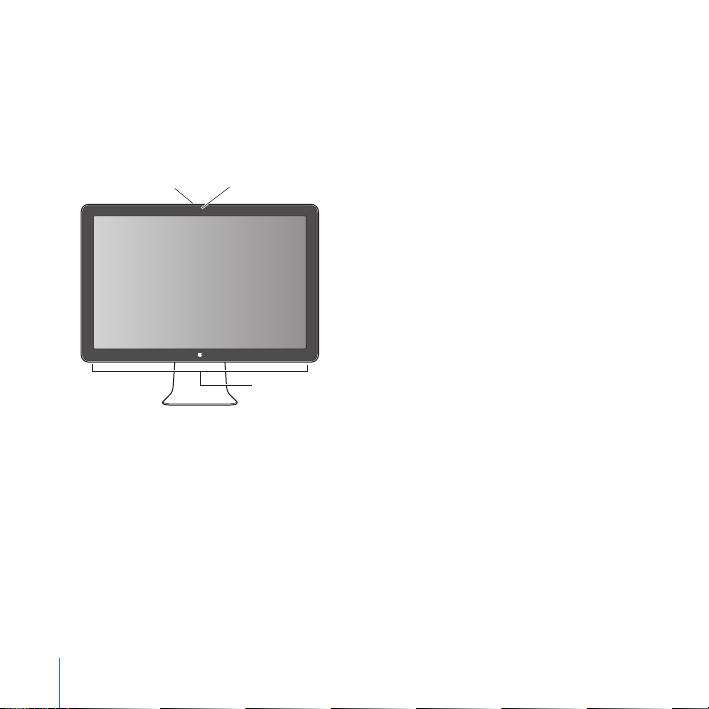
Your Apple LED Cinema Display has a built-in iSight camera, microphone, and display
speaker system. The USB connection between the display and your computer enables
these features.
Built-in
Microphone
iSight camera
Display speaker system
Setting Up Sound Input and Output
You can listen to music, movies, games, and multimedia files through the speaker
system on your display. You can use the microphone to record sounds, or talk with
friends using iChat. Use Sound preferences to manage sound input and output.
To set up sound input:
1
Choose Apple (
) > System Preferences, and then click Sound.
2
Click the Input tab in Sound preferences.
3
Choose Display Audio to input sound through your display’s microphone.
10
English
Top 10 manuals
100.00
NZXT HALE90 1000W99.99
Samsung SM-R38099.97
AEG BSB 18C99.97
Dell 2700W99.97
Smeg KSEC70X99.96
Beurer HDE 4099.96
Pyramida KH 50 v.299.96
MSI CSM-H81M-P3299.96
AEG HR 562799.95
Melissa 640-048