
Apple LED Cinema Display: Using the USB Ports and Security Slot Using a VESA Mounting Solution with Your Display
Using the USB Ports and Security Slot Using a VESA Mounting Solution with Your Display: Apple LED Cinema Display
Table of contents
- Getting Started
- Setting Up Your Display
- Setting Up Your Computer with the Lid Closed
- Using Your Display Setting Up Sound Input and Output
- Using the Built-in iSight Setting Up Your Apple LED Cinema Display as an Additional Display
- Adjusting the Color and Brightness
- Using the USB Ports and Security Slot Using a VESA Mounting Solution with Your Display
- Care and Safety
- Ergonomics
- Position the display by tilting it up or down to minimize glare and reflections from overhead lights and nearby windows.
- Troubleshooting Your Display
- More Troubleshooting Information Learning More, Service, and Support To learn about Do this
- Specifications
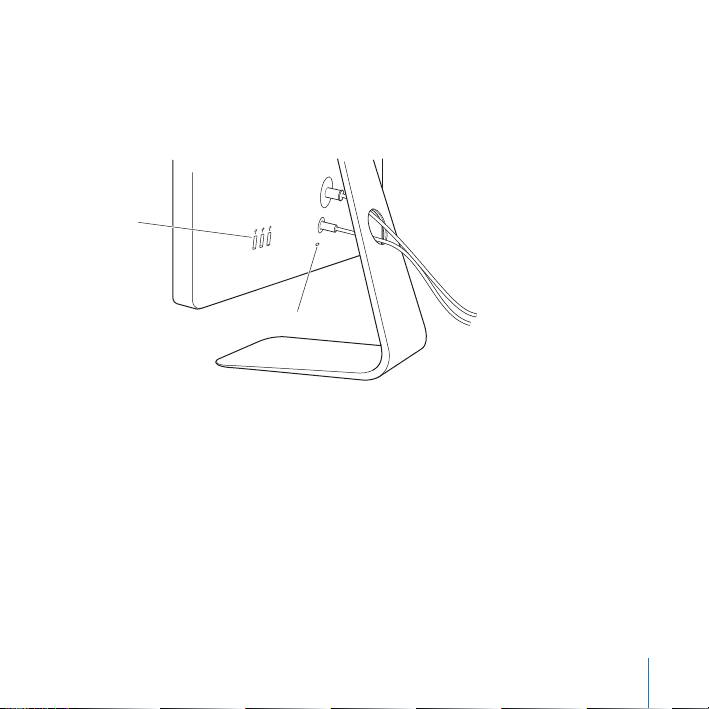
Using the USB Ports and Security Slot
Your display has three powered USB ports on the back. Use these ports to connect a
mouse, keyboard, iPhone, iPod, or other USB peripheral. Make sure the display’s USB
cable is connected to your computer.
USB ports
Security slot
To secure your display, use the security slot to attach a locking cable.
Using a VESA Mounting Solution with Your Display
You can attach your display to an alternative mounting solution, using the VESA Mount
Adapter kit available from the Apple Online Store at www.apple.com/store. Use the kit
to attach your display to any available VESA-compatible mounting solution. Simply
follow the instructions included with the kit.
English
13
Top 10 manuals
100.00
NZXT HALE90 1000W99.99
Samsung SM-R38099.97
AEG BSB 18C99.97
Dell 2700W99.97
Smeg KSEC70X99.96
Beurer HDE 4099.96
Pyramida KH 50 v.299.96
MSI CSM-H81M-P3299.96
AEG HR 562799.95
Melissa 640-048