
HEIDENHAIN ND 1200 Quick Start: Operation
Operation: HEIDENHAIN ND 1200 Quick Start
Operation
Preparing to measure
Probing points
Measuring Features
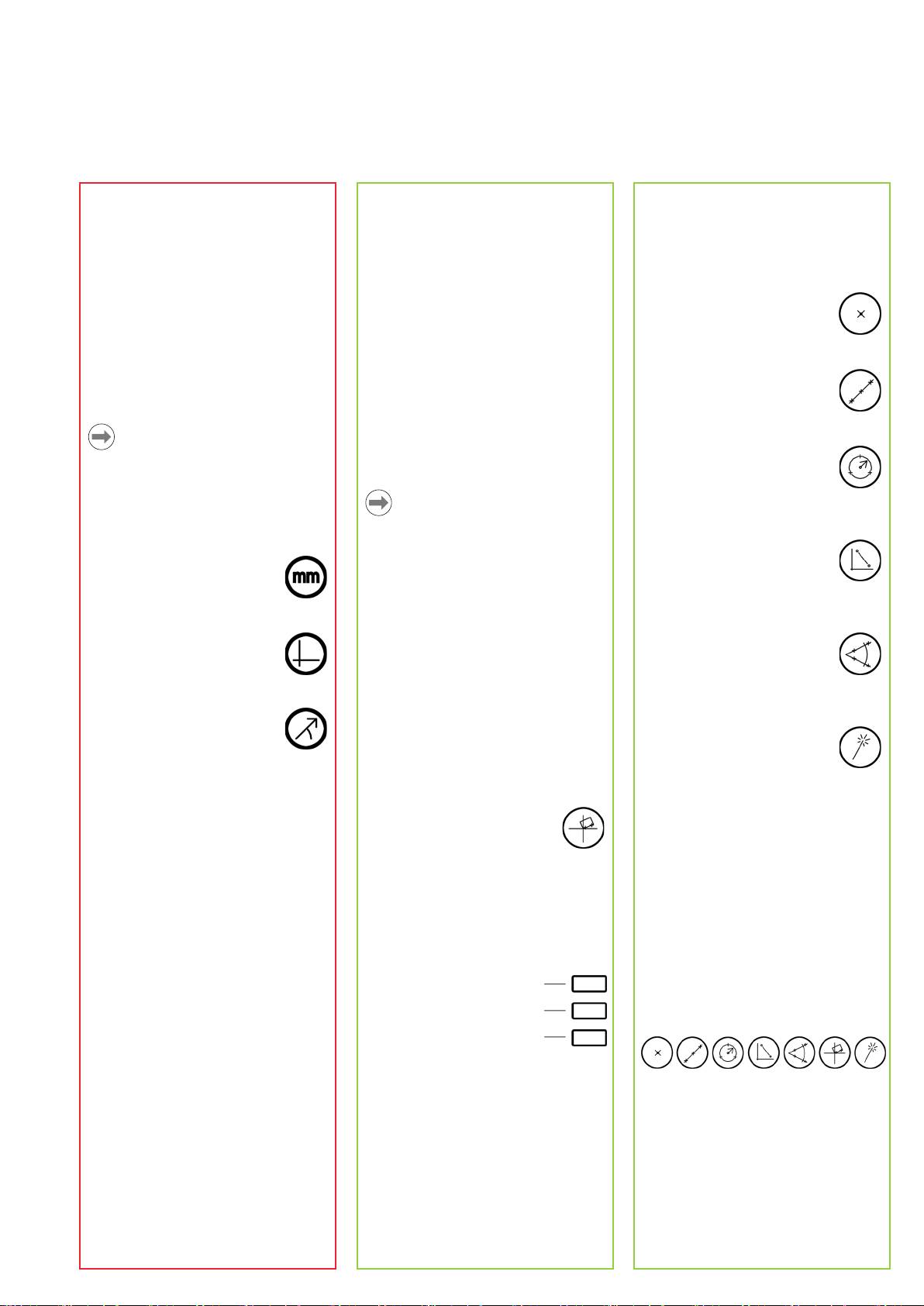
Points are probed with crosshairs or
Features are measured by selecting
1. Power up the ND 1200
with (optional) optical edge detection.
the feature type (or Measure Magic),
• Check connections to the ND 1200.
The number of probed points will be
probing points and then pressing the
• Press the POWER SWITCH to power
displayed in the upper left corner of the
FINISH key.
the ND 1200. Then press the FINISH
LCD.
key to display the DRO screen.
1. Measure a point
1. Probing with crosshairs
Press the POINT MEASURE
2. Find machine zero (otional)
• Move the stage to position the
key, probe a point and press the
Move the stage to cross reference
crosshairs over the desired feature
FINISH key.
marks or find hard stops if your system
point.
2. Measure a line
was set up to establish machine zero at
• Press the ENTER key.
Press the LINE MEASURE key,
startup.
probe points on the line and
2. Probing with edge detection
press the FINISH key.
• Move the stage to pass the optical
Note:
sensor across an edge. The ND 1200
3. Measure a circle
A repeatable machine zero is required
will beep when the edge is detected.
Press the CIRCLE MEASURE
when SLEC or NLEC error correction
key, probe points on the
is used. Refer to the User’s Guide for
circumference of the circle and
detailed information.
Note:
press the FINISH key.
Try to cross the edge in a perpendicular
3. Select a unit of measure
path.
4. Measure a distance
Press the mode key UNIT OF
Press the DISTANCE MEASURE
MEASURE to toggle between
• Press the ENTER key when automatic
key, probe a point on each end
inches and mm.
point entry (Auto E) is not used.
of the distance and press the
FINISH key.
4. Select a datum
Press the DATUM key to toggle
5. Measure an angle
Aligning the part
between datum 1 and datum 2.
Press the ANGLE MEASURE
Perform a skew alignment to eliminate
key, probe two points on each
cosine errors resulting from misaligned
leg of the angle and press the
5. Select coordinates
parts.
FINISH key.
Press the COORDINATES key to
toggle between rectangular and
1. Align the part on the stage
6. Use measure Magic
polar coordinates.
Align the reference edge of the part to a
Press the MEASURE MAGIC
measurement axis.
key, probe points on a feature
6. Select a probe (optional)
and press the FINISH key. The
Press the PROBE soft key to cycle
2. Perform a skew alignment
feature type will be determined
through probe types displayed in the
• Press the SKEW MEASURE
based on probed points.
top-right corner of the DRO screen.
key to begin the alignment.
• Probe points along the part
7. Teach optical edge (optional)
edge aligned to the reference
Creating Features
Press the TEACH soft key to calibrate
axis.
Features are created by selecting the
the optical edge probe.
• Press the FINISH key to complete the
feature type to be created, entering the
alignment.
required feature data and then pressing
the FINISH key.
Creating a datum
1. Specify feature type
Press a MEASURE key to specify the
Probe, construct or create
type of feature to be created and then
a reference point and press
press the CREATE soft key.
the X and Y Axis keys to
zero or preset a datum for
measurements.
2. Enter the feature data
Enter data into fields shown on the
screen.
3. Complete the creation
Press the FINISH key to complete
the feature creation. The new created
feature will be shown in the feature list.
3
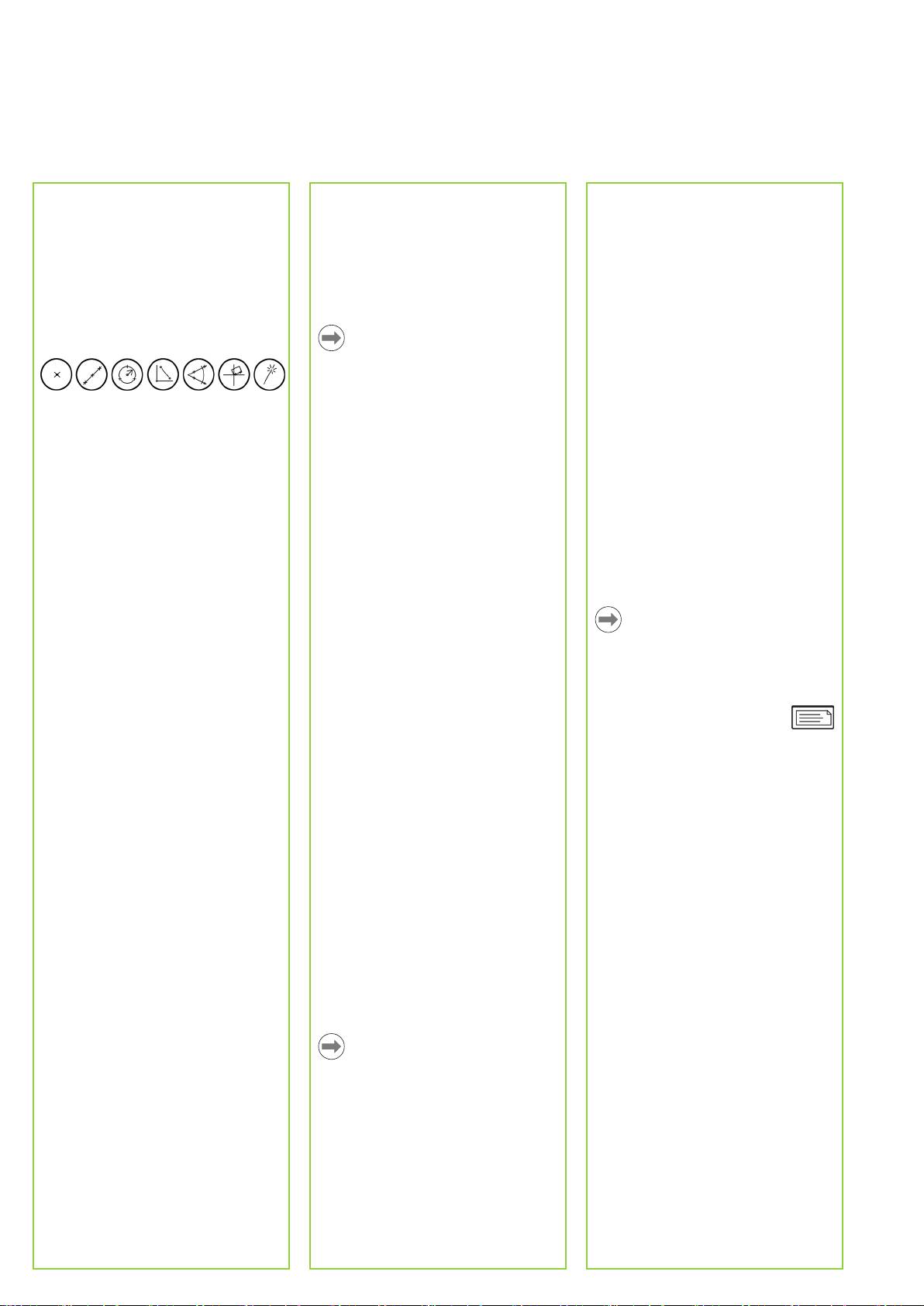
Operation
Constructing Features
Programming
4. Backup programs
Features are constructed by selecting
Programs are recorded sequences of
Programs can be backed up by saving
the feature type to be constructed,
measurement and other operator key-
them in a ND 1200 settings file to a USB
selecting the parent features and then
press activities stored by the ND 1200
drive.
pressing the FINISH key.
to be played back later when inspecting
• Plug an empty USB drive into the USB
identical parts. This guide discusses
port on the side of the ND 1200.
1. Specify feature type
recording and running programs.
• Press the MENU key.
Press a MEASURE key to specify the
• Press the SETUP soft key.
type of feature to be constructed.
• Highlight the SUPERVISOR menu
Note:
item.
Programs can also be edited, copied,
• Highlight the PASSWORD data field.
backed up and deleted. Refer to the
• Enter the Supervisor password.
User’s Guide for detailed information.
• Press the SAVE... soft key to save the
2. Enter a parent feature
programs with the ND 1200 settings
Highlight a parent feature in the feature
1. Record a program
file.
list and press the ENTER key. A check
• Press the MENU key.
• Press the FINISH key to end the
mark will be shown near the parent
• Press the PROG soft key.
programming session.
feature.
• Press the RECORD soft key.
• Enter a program number.
3. Enter all other parent features
• Perform measurement or other
Reporting Results
Continue highlighting and entering
steps as usual. Program recording is
Reports of results can be sent to a USB
parent features until all desired parent
indicated in the top right corner of the
printer, USB flash drive or a PC. The
features show check marks.
screen.
report destination is specified in the
• To end recording, press the MENU
PRINT, RS-232 and USB SETUP screens.
4. Complete the construction
key, press the PROG soft key again
Press the FINISH key to complete the
and then press the END REC soft key.
construction. The new constructed
The new program will be stored.
Note:
feature will be shown in the feature list.
• Press the FINISH key to end the
Refer to the ND 1200 user guide on our
programming session.
web site at: www.heidenhain.de for
details.
Applying Tolerances
2. Run a program
Tolerances are applied by selecting
• Press the MENU key.
• Press the SEND key to report
a feature, pressing the TOL soft key,
• Press the PROG soft key.
results.
entering tolerance data and pressing the
• Highlight a program number.
FINISH key.
• Press the RUN soft key. The Current
Position screen is displayed.
1. Select a feature
• Press the VIEW soft key to see point
Use the ARROW CURSOR keys to
targeting while points are probed.
highlight a feature in the feature list.
• The program will stop automatically
when all program steps have been
2. Press the TOL soft key
played.
Tolerance types are displayed at the
• Press the FINISH key to end the
bottom of the screen.
programming session.
3. Select a tolerance type
3. Delete a program
Press a soft key to select the desired
• Press the MENU key.
tolerance type.
• Press the PROG soft key.
• Highlight a program number.
4. Enter data
• Press the DELETE soft key. The
Enter nominal and tolerance data into
program will be deleted.
data fields provided in the tolerance
screen.
Note:
5. Apply the tolerance data
Use caution when deleting programs,
Press the FINISH key to apply the
and store a backup of the program first.
tolerance data. A check mark indicates
Deleted programs cannot be restored.
passed tolerances. A cross indicates
failed tolerances. Edit the tolerance data
• Press the FINISH key to end the
if desired by pressing the EDIT soft key.
programming session.
6. Complete the tolerance
Press the FINISH key to complete the
tolerance. A pass or fail indication will be
shown near the TOL soft key.
4
Table of contents
- ND 1200 QUADRA-CHEK
- ND 1200 QUADRA-CHEK English Setup
- ND 1200 QUADRA-CHEK Setup
- Operation
- ND 1200 QUADRA-CHEK Deutsch Einrichten
- ND 1200 QUADRA-CHEK Einrichten
- Bedienung
- ND 1200 QUADRA-CHEK Français Paramétrage
- ND 1200 QUADRA-CHEK Paramétrage
- Présentation
- ND 1200 QUADRA-CHEK Italiano Configurazione
- ND 1200 QUADRA-CHEK Configurazione
- Funzionamento
- ND 1200 QUADRA-CHEK Español Ajustes del ND 780
- ND 1200 QUADRA-CHEK Ajustes del ND 780
- Operación
- ND 1200 QUADRA-CHEK Svenska Inställning
- ND 1200 QUADRA-CHEK Inställning
- Handhavande
- ND 1200 QUADRA-CHEK Nederlands Instellen
- ND 1200 QUADRA-CHEK Instellen
- Bediening
- ND 1200 QUADRA-CHEK Česky Nastavení
- ND 1200 QUADRA-CHEK Nastavení
-
- ND 1200 QUADRA-CHEK Português Configurar
- ND 1200 QUADRA-CHEK Configurar
- Operação
- Funcionamento
- ND 1200 QUADRA-CHEK Język polski Nastawienie
- ND 1200 QUADRA-CHEK Nastawienie
-
- ND 1200 QUADRA-CHEK Русский
- ND 1200 QUADRA-CHEK
-
- ND 1200 QUADRA-CHEK Türkçe Kurulum
- ND 1200 QUADRA-CHEK Kurulum
-
- ND 1200 QUADRA-CHEK Nihongo
- ND 1200 QUADRA-CHEK
-
- ND 1200 QUADRA-CHEK Zhongwen (zh_TW)
- ND 1200 QUADRA-CHEK
-
- ND 1200 QUADRA-CHEK
