
Apple LED Cinema Display (27): Ergonomics
Ergonomics: Apple LED Cinema Display (27)
Table of contents
- Getting Started
- Setting Up Your Display
- Setting Up Your MacBook with the Lid Closed
- Using Your Display Using the Built-in iSight Camera and Microphone
- Setting Up Sound Input and Output
- Setting Up Your Apple LED Cinema Display as an Additional Display Adjusting the Resolution, Brightness, and Color
- Using the USB Ports and Security Slot
- Using a VESA Mounting Solution with Your Display Care and Safety
- WARNING: Use only the power cord that came with your display. The power cord has
- Ergonomics
- Troubleshooting Your Display
- More Troubleshooting Information Learning More, Service, and Support
- Specications
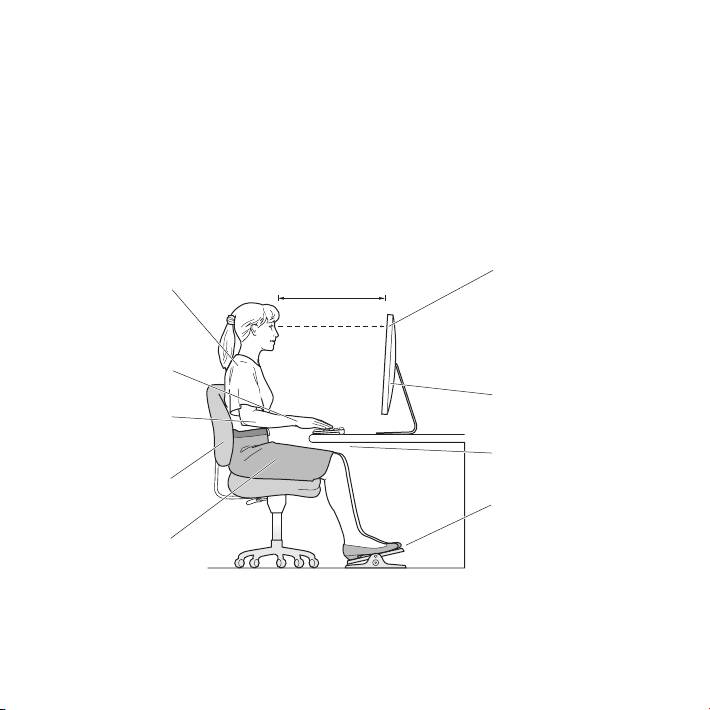
Ergonomics
Here are some guidelines for adjusting your display to reduce glare and to
accommodate your physical size and shape.
 Arrange the display so that the top of the screen is slightly below your eye level
when you’re sitting at the keyboard. The best distance from your eyes to the screen is
up to you, although most people tend to prefer 18 to 28 inches (45 to 70 cm).
 Position the display by tilting it up or down to minimize glare and reections from
overhead lights and nearby windows.
Shoulders
relaxed
Forearms and
hands in a
straight line
Screen positioned to
Forearms level
avoid reflected glare
or tilted slightly
Lower back
supported
Feet flat on the floor
or on a footrest
Thighs tilted
slightly
15English
Top of the screen at or
18–28 in. (45–70 cm)
slightly below eye level
(You may need to adjust
the height of your display
by raising or lowering
your work surface)
Clearance under
work surface
For more information about health, safety, and maintenance, go to the Apple
ergonomic website at www.apple.com/about/ergonomics.
