
Lenovo IdeaPad Y650: instruction
Class: Computer equipment, hardware, accessories
Type: Laptop/Notebook Computer

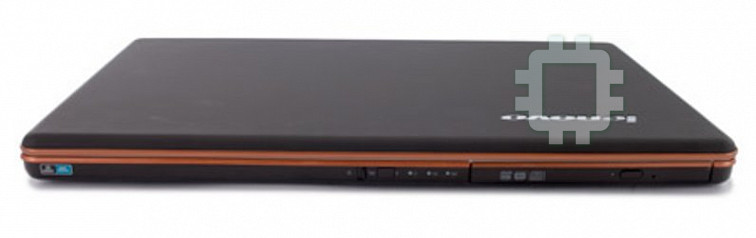


Manual for Lenovo IdeaPad Y650
Table of contents
- Introduction
- Important Notes
- Lenovo OneKey Recovery
- Create Full Backup Create Incremental Backup
- Create Recovery Disc Restore of Factory Default
- Restore from Backup Using Recovery Discs
- Back Up My Data System Repair Set and Manage User Password
- Frequently Asked Questions
- Glossary Term Definition
- Backing Up Your Data 1. Why can’t I run full back up? 2. Why can’t I run incremental back up?
- 3. What can I do if the back up process fails? Recovering Your Data 1. When do I need to use the Restore to Factory Default feature? 2. Why can’t I use the Restore to Factory Default feature?
- 3. What can I do if the recovery process fails? 4. Why can’t I nd the backed up les during recovery process?
- Using Recovery Disc(s) Back Up My Data Feature
- Others

Lenovo OneKey Rescue System 6.0 V1.0 cover_en_1-4
Lenovo
OneKey Rescue System 6.0
OneKey Rescue System 6.0
User Guide V1.0
使用说明书 V1.0
©Lenovo China 2008
使用者手冊 V1.0
TM
New World. New Thinking.
Руководство пользователя, версия 1.0
www.lenovo.com
Guide de l’utilisateur V1.0
Benutzerhandbuch V1.0
Guida utente V1.0
Guía del usuario V1.0
P/N:147001864
Printed in China
(EN, CN, TW, RU, FR, DE, IT, ES)

Lenovo OneKey Rescue System 6.0 V1.0 cover_en_2-3
First Edition (May 2008)
© Copyright Lenovo 2008. All rights reserved.
U.S. GOVERNMENT USERS – RESTRICTED RIGHTS: Our products and/or services are provided with
RESTRICTED RIGHTS. Use, duplication or disclosure by the Government is subject to the GSA ADP Schedule
contract with Lenovo, if any, or the standard terms of this commercial license, or if the agency is unable to accept
this Program under these terms, then we provide this Program under the provisions set forth in Commercial
Computer Software–Restricted Rights at FAR 52.227-19, when applicable, or under Rights in Data-General, FAR
52.227.14 (Alternate III).

OneKey Rescue System 6.0 V1.0 EN 147001728
English
En-i
Contents
Introduction ..................................................................................................... 1
Important Notes ...................................................................................................... 2
Lenovo OneKey Recovery
............................................................................. 3
Create Full Backup.................................................................................................. 4
Create Incremental Backup ................................................................................... 4
Create Recovery Disc ............................................................................................. 5
Restore of Factory Default ..................................................................................... 5
Restore from Backup .............................................................................................. 6
Using Recovery Discs ............................................................................................. 6
Back Up My Data .................................................................................................... 7
System Repair .......................................................................................................... 7
Set and Manage User Password ........................................................................... 7
Frequently Asked Questions
......................................................................... 8
Glossary .................................................................................................................... 9
Backing Up Your Data ......................................................................................... 10
Recovering Your Data .......................................................................................... 11
Using Recovery Disc(s) ........................................................................................ 13
Back Up My Data Feature .................................................................................... 13
Others ..................................................................................................................... 14
Lenovo OneKey Rescue System 6.0 1 1 2008/5/27 17:29:18

OneKey Rescue System 6.0 V1.0 EN 147001728
En-1
Introduction
Lenovo
®
OneKey Recovery is an easy-to-use application that can be used
to back up the data on your system partition (C drive) and then easily
restored when required. You can run Lenovo OneKey Recovery under both
Windows and WinPE.
In Windows, you can create a backup of an entire system partition, saving
it your local hard disk. You can back up your data to a CD, DVD, network
drive or other removable disk. In addition, you can also create Windows
recovery disc(s) to boot and recover your system.
If you need to recover your system, you can use OneKey Rescue System,
which includes several applications to help you detect and remove
viruses, and recover Windows system and data. You can press OneKey
Rescue System key to activate Lenovo OneKey Rescue when your PC is
turned off. Within the program, you can restore your system partition to
the original factory status or to a previously generated backup. You may
also transfer critical data or documents to other storage devices. All these
features make Lenovo OneKey Recovery an important utility to secure
your data.
Lenovo OneKey Rescue System 6.0 1 1 2008/5/27 17:29:19

OneKey Rescue System 6.0 V1.0 EN 147001728
English
En-2
Important Notes
1.
In order to utilize the features of OneKey Recovery, your hard
disk already includes a hidden partition by default to store a
system mirror image le and OneKey Recovery program les.
This default partition is hidden for security reasons and is the
reason the available disk space is less than it claims. The exact
available hard disk space depends on the le size of the mirror
image le (based on the size of operating system and pre-
installed software.)
2.
You can use Restore to Factory Default feature to restore the
system partition (C drive) back to the factory default, i.e. the
state your computer was when you purchased it. However,
once you restore to this status, you will not be able to restore
the system to another previously backed up state. Therefore,
make sure you back up your critical data on the system
partition (C drive) to other media, such as a another disk
partition, CD/DVD discs or removable storage devices.
Lenovo OneKey Rescue System 6.0 2 2 2008/5/27 17:29:19

OneKey Rescue System 6.0 V1.0 EN 147001728
En-3
Lenovo OneKey Recovery
Lenovo OneKey Recovery is a utility that makes sure your system’s hard
disk is safe. You can run initial backup or incremental backup manually,
and then restore your system partition to a previous backup.
Its features include:
•
See Create Full Backup
•
See Create Incremental Backup
•
See Create Recovery Disc
•
See Restore of Factory Default
•
See Restore from Backup
•
See Using Recovery Discs
•
See Back Up My Data
•
See System Repair
•
See Set and Manage User Password
Lenovo OneKey Rescue System 6.0 3 3 2008/5/27 17:29:19

OneKey Rescue System 6.0 V1.0 EN 147001728
English
En-4
Create Full Backup
There are two backup types that can be created: full backup and
incremental backup. Selecting Full backup backs up your system
partition to a folder on the hard disk in order to recover it in the
future. The program will save the backed up data to the default
location. For example to D:\Lenovo\OneKey App\OneKey
Recovery. You may also select another destination, such as
removable storage devices, network drives or a CD/DVD.
If you choose to back up system partition to a disc (CD/DVD), the
created discs can be used to recover your system to the current status.
We suggest you do the following before you create recovery discs:
•
Use the latest version of your system’s anti-virus software to
scan your computer and make sure it is virus-free.
•
Optimize your system, including scanning and defragmenting
your hard disk drive.
Create Incremental Backup
An incremental backup is a backup of your data based on
previous backed up le located in the default path. This backup
includes different data than the full backup, such as application
variations and user data.
Incremental backup can only be saved to the default path; it
cannot be backed up to another location.
Lenovo OneKey Rescue System 6.0 4 4 2008/5/27 17:29:19

OneKey Rescue System 6.0 V1.0 EN 147001728
En-5
Create Recovery Disc
You can burn the backup image to a CD/DVD as recovery
discs. The recovery discs can be used to boot up your computer
automatically and restore your system back to previously backed
up status. If your hard disk fails and you are unable to use Lenovo
OneKey Recovery on your computer, you can use these discs to
recover your system on a reformatted hard drive.
1.
Please make sure to create recovery discs, so that you can
recover your system, even when replacing the hard drive.
2.
After the recovery discs are burned, please number them so that
you can use them in order.
3.
When burning the recovery discs, please use good quality
discs with to ensure the burning process and backed up data is
complete and correct.
Restore of Factory Default
In order to save application les and the initial backed up les of the
system, the hard disk in a Lenovo PC includes a hidden partition
when it is shipped. If you need to restore the system to the point of
your rst boot up, just enter Lenovo OneKey Rescue System and
run Restore to Factory Default. This will delete all the new data on
the system partition (C partition), which is not recoverable. Make
sure to back up your critical data before you run this feature.
Lenovo OneKey Rescue System 6.0 5 5 2008/5/27 17:29:19

OneKey Rescue System 6.0 V1.0 EN 147001728
English
En-6
Restore from Backup
If you want to recover the system to a previous status, you just
need to enter Lenovo OneKey Rescue, and select Restore from
User’s Backup. Select the appropriate image le or, if you have
run incremental backup before, you can use the incremental le to
restore your system.
The process above will remove all data on the current system
partition (C partition), which is not recoverable. Please back up all
important data before restoring to a previous backup.
Using Recovery Discs
When you replace a hard disk drive in your computer, you are
unable to use the pre-installed Lenovo OneKey Recovery and
OneKey Rescue. However, you can use the recovery discs that
store your backed up data to restore your new hard drive to a
previous backup status.
When you use the recovery discs to boot your computer, the
system will enter system recovery user interface automatically.
Please follow the prompt to insert the backup discs in order to
complete the entire recovery process.
Lenovo OneKey Rescue System 6.0 6 6 2008/5/27 17:29:19

OneKey Rescue System 6.0 V1.0 EN 147001728
En-7
Back Up My Data
Within the Lenovo OneKey Rescue System you can transfer your data
from your computer’s hard disk to other devices, so you may easily
nd it if your Windows system ever encountered a critical failure.
System Repair
When you use Lenovo OneKey Rescue System, the program
detects whether Windows has been damaged. If the system kernel
les are damaged, Lenovo OneKey Rescue System will prompt
you to proceed with a system repair. The system will reboot after
the repair process is complete. If there are no les damaged,
Lenovo OneKey Rescue System starts normally.
•
System repair only works for system data les. Using this
feature will not affect your own data
Set and Manage User Password
You can set up your user password within Lenovo OneKey
Rescue System to ensure other users cannot use the system
recovery or Back Up My Data functions.
By default, the user password within the Lenovo OneKey Rescue
System is blank and it is recommended that you immediately set a
new password to ensure your system is protected.
Lenovo OneKey Rescue System 6.0 7 7 2008/5/27 17:29:19

OneKey Rescue System 6.0 V1.0 EN 147001728
English
En-8
Frequently Asked Questions
This chapter contains a glossary of terms and outlines frequently asked
questions about Lenovo OneKey Recovery.
The topics are:
•
See Glossary
•
See Backing Up Your Data
•
See Recovering Your Data
•
See Using Recovery Disc(s)
•
See Back Up My Data Feature
•
See Others
Lenovo OneKey Rescue System 6.0 8 8 2008/5/27 17:29:19

OneKey Rescue System 6.0 V1.0 EN 147001728
En-9
Glossary
Term Definition
Restore
Restores the system partition (C drive) back to the
to factory
factory initial status. However, once you do this, you
default
will not be able to restore to a backed up state created
after you began using your computer. Therefore, it is
recommended that you back up your critical data on the
system partition (C drive) before proceeding.
Full
A full backup is a backup of the entire system partition.
backup
You will need to perform a full back up before you can
run incremental back up. The backed up data will be
saved in the default location. You can also specify the
location to another path.
Incremental
An incremental backup is a backup of your data based on
backup
previous backed up le, backing up only the new/different
data. Incremental backup can save hard disk space and
back up time. For ease of management, the incremental
backup le can only be saved to the default location.
Create
Burn the backed up system partition data to discs and
recovery
create recoverable disc(s). This allows you to recover
disc
your current system status even if you replace your hard
disk in the future.
Back up
Copies your data to other storage devices, such as a
my data
removable drive or a network server, so that you can
retrieve the data easily under system failure.
Lenovo OneKey Rescue System 6.0 9 9 2008/5/27 17:29:19

OneKey Rescue System 6.0 V1.0 EN 147001728
English
En-10
Backing Up Your Data
1. Why can’t I run full back up?
The possible causes are:
•
Case 1 : you are not currently using a Windows operating
system (XP/Vista).
•
Case 2 : there is not enough space to store the backed up data.
You will need to free more hard disk space on your system
partition (C drive).
•
Case 3 : if you are backing up your data to a CD/DVD, make
sure you are using compatible burning devices.
•
Case 4 : if you are burning backed up les to CD/DVD, make
sure the burning devices are compatible with the CD/DVD
discs.
2. Why can’t I run incremental back up?
The possible causes are:
•
Case 1 : you didn’t run full backup in the default path. Please
make sure you ran full back up in this path before runing
incremental backup.
•
Case 2 : you didn’t select the default path for incremental
back up. Incremental backed up les can be only saved to the
default path. Please do not specify a different location.
•
Case 3 : the free disk space for the default location is
insufcient. Please free more space on that hard drive.
Lenovo OneKey Rescue System 6.0 10 10 2008/5/27 17:29:19

OneKey Rescue System 6.0 V1.0 EN 147001728
En-11
3. What can I do if the back up process fails?
If you can start the back up feature without a problem, but it fails
during the back up process, please try the following steps:
1.
Close other applications, then restart the backup process.
2.
Check if the destination media is damaged, try to select another
path and then try again.
Recovering Your Data
1. When do I need to use the Restore to Factory Default feature?
You can use this feature when your system fails or you need to
re-install your operating system. This will restore your computer
back to the initial status when you rst booted up your computer
after receiving it from the store. By doing this, the data on your
system partition will be restored to the factory default. If there
is critical data on your current partition, please back it up before
you run this recovery feature.
2. Why can’t I use the Restore to Factory Default feature?
If your system partition was modied, such as the partition size
or the drive capacity of C was changed by another partition
utility, you will not be able to use the Restore to Factory Default
feature. Therefore, we suggest that you don’t change the size of
that partition to make sure the Restore to Factory Default feature
is workable under any circumstance.
Lenovo OneKey Rescue System 6.0 11 11 2008/5/27 17:29:20

OneKey Rescue System 6.0 V1.0 EN 147001728
English
En-12
3. What can I do if the recovery process fails?
If you can start the recovery feature without a problem, but it fails
during the recovery process, this may be caused by one of the
following reasons:
•
The backed up les were damaged
•
The disc(s) were physically damaged
•
Other unknown issues
In this case, please select other backed up les and try to recover
them. If it still doesn’t work, you can use Restore to Factory
Default feature to restore your system partition to factory default.
Please note your data on system partition will be lost during this
restore process.
4. Why can’t I nd the backed up les during recovery process?
In OneKey Rescue System, the disk partition structure is different
from Windows system. Therefore you may not be able to nd the
backed up data in the Windows backup path. In this case, you can
change to another disk partition and try to locate backed up data
in the folders of other partitions, then continue to complete the
recovery process.
Lenovo OneKey Rescue System 6.0 12 12 2008/5/27 17:29:20

OneKey Rescue System 6.0 V1.0 EN 147001728
En-13
Using Recovery Disc(s)
1. How can I create the recovery discs for my current system?
You can use Create Full Backup feature in OneKey Recovery’s
Backup section, then choose back up to discs.
2. Why can’t the recovery disc(s) recover the entire hard disk drive?
The recovery discs include the backed up les of the system
partition (c partition), instead of the backed up les of entire hard
disk drive. Therefore you can’t recover the entire hard disk with
the recovery discs you created.
3. Why can’t I use the recovery disc(s)?
•
When you create recovery discs, please use reliable discs, or
the backed up data may be damaged.
•
When you use the recovery discs, please follow the instructions
to insert backup discs.
Back Up My Data Feature
1. When do I need to use the Back Up My Data feature?
When your system fails or is unable to boot up, you can use Back
Up My Data feature to retrieve the data you need immediately
from your PC.
Lenovo OneKey Rescue System 6.0 13 13 2008/5/27 17:29:20

OneKey Rescue System 6.0 V1.0 EN 147001728
English
En-14
Others
1. How do I access the Lenovo OneKey Rescue System?
You can press OneKey Rescue System key to activate Lenovo
OneKey Rescue when your PC is turned off. You cannot only
use system recovery features, but also use other applications like
system recovery, virus detection and cleaning to protect your
computer.
2. Why can’t System Repair x system partition data completely?
System Repair feature can only x important system kernel les
to ensure the system can boot up normally. It will not repair all
data les.
3. Why does System Repair always prompt me that system kernel
les need to be repaired when using OneKey Rescue System?
Please make sure you have installed Windows Vista SP1 or
Windows XP SP2 on your system.
Lenovo OneKey Rescue System 6.0 14 14 2008/5/27 17:29:20

Lenovo OneKey Rescue System 6.0 15 15 2008/5/27 17:29:20

OneKey Rescue System 6.0 V1.0 CN 147001728
中文简体
Cn-i
目录
软件简介............................................................ 1
2
一键恢复............................................................ 3
4
4
5
5
6
6
6
7
7
常见问题解答........................................................ 8
8
9
10
11
12
12
Lenovo OneKey Rescue System 6.0 1 1 2008/5/27 17:29:20

OneKey Rescue System 6.0 V1.0 CN 147001728
Cn-1
软件简介
®
C Windows
Windows
CDDVD
Windows
OneKey Rescue System
Windows
Lenovo OneKey Rescue System 6.0 1 1 2008/5/27 17:29:20


