
USRobotics USR9600: Regulatory and Warranty
Regulatory and Warranty: USRobotics USR9600

Regulatory and Warranty
Regulatory Information
Skype is not a telephony replacement service. Any VoIP service used in conjunction with the USB Internet
Phone cannot be used for calls to emergency services or emergency telephone numbers (311, 911, 112, 999,
etc.). Use a landline telephone for calls to emergency services, such as police, fire, or ambulance.
Declaration of Conformity
U.S. Robotics Corporation
935 National Parkway
Schaumburg, IL 60173
U.S.A.
declares that this product conforms to the FCC’s specifications:
Part 15, Class B
Operation of this device is subject to the following conditions:
1) this device may not cause harmful electromagnetic interference, and
2) this device must accept any interference received including interference that may cause undesired opera-
tions.
This equipment complies with FCC Part 15 for Home and Office use.
Caution to the User: Any changes or modifications not expressly approved by the party responsible for compli-
ance could void the user’s authority to operate the equipment.
Radio and Television Interference:
This equipment has been tested and found to comply with the limits for a Class B digital device, pursuant to
Part 15 of the FCC Rules. These limits are designed to provide reasonable protection against harmful interfer-
ence in a residential installation. This equipment generates, uses and can radiate radio frequency energy. If this
equipment is not installed and used in accordance with the manufacturer’s instructions, it may cause harmful
interference to radio communications. However, there is no guarantee that interference will not occur in a par-
ticular installation. If this equipment does cause harmful interference to radio or television reception, which can
be determined by turning the equipment off and on, the user is encouraged to try to correct the interference by
one or more of the following measures:
• Reorient or relocate the receiving antenna.
• Increase the separation between the equipment and receiver.
• Connect the equipment to an outlet on a circuit different from that to which the receiver is connected.
• Consult the dealer or an experienced radio/TV technician for help.
UL Listing/CUL Listing:
For External products:
This information technology equipment is UL Listed and C-UL Listed for both the US and Canadian markets
respectively for the uses described in the User Guide. Use this product with UL Listed Information Technoloy
Equipment (ITE) only.
For Internal products:
This information technology equipment is UL Listed and C-UL Listed for both the US and Canadian markets
respectively for use with UL-Listed personal computers that have installation instructions detailing user instal-
lation of card accessories. Use this equipment in UL Listed (ITE) only.
For Laptop/Notebook products:
This information technology equipment is UL Listed and C-UL Listed for both the US and Canadian markets
respectively for use only with UL Listed laptop or notebook computers. Use this equipment in UL Listed (ITE)
only.
9

For Canadian Users
Industry Canada (IC)
This digital apparatus does not exceed the Class B limits for radio noise emissions from digital apparatus set
out in the interference-causing equipment standard entitled Digital Apparatus, ICES-003 of Industry Canada.
Users should ensure for their own protection that the electrical ground connections of the power utility, tele-
phone lines, and internal metallic water pipe system, if present, are connected together. This precaution may
be particularly important in rural areas.
Caution: Users should not attempt to make electrical ground connections by themselves, but should contact
the appropriate inspection authority or an electrician, as appropriate.
Declaration of Conformity
We, U.S. Robotics Corporation of 935 National Parkway, Schaumburg, Illinois, 60173-5157 USA, declare under
our sole responsibility that the products, USRobotics USB Phones, Models 9600 and 9600A, to which this dec-
laration relates, are in conformity with the following standards and/or other normative documents.
EN55022
EN55024
We hereby declare that the above named products are in conformity with the essential requirements and other
relevant provisions of Directive 89/336/EC.
U.S. Robotics Corporation Two (2) Year Limited Warranty
1.0 GENERAL TERMS:
1.1 This Limited Warranty is extended only to the original end-user purchaser (CUSTOMER) and is not transfera-
ble.
1.2 No agent, reseller, or business partner of U.S. Robotics Corporation (U.S. ROBOTICS) is authorised to modify
the terms of this Limited Warranty on behalf of U.S. ROBOTICS.
1.3 This Limited Warranty expressly excludes any product that has not been purchased as new from U.S.
ROBOTICS or its authorised reseller.
1.4 This Limited Warranty is only applicable in the country or territory where the product is intended for use (As
indicated by the Product Model Number and any local telecommunication approval stickers affixed to the prod-
uct).
1.5 U.S. ROBOTICS warrants to the CUSTOMER that this product will be free from defects in workmanship and
materials, under normal use and service, for TWO (2) YEARS from the date of purchase from U.S. ROBOTICS or
its authorised reseller.
1.6 U.S. ROBOTICS sole obligation under this warranty shall be, at U.S. ROBOTICS sole discretion, to repair the
defective product or part with new or reconditioned parts; or to exchange the defective product or part with a
new or reconditioned product or part that is the same or similar; or if neither of the two foregoing options is rea-
sonably available, U.S. ROBOTICS may, at its sole discretion, provide a refund to the CUSTOMER not to exceed
the latest published U.S. ROBOTICS recommended retail purchase price of the product, less any applicable
service fees. All products or parts that are exchanged for replacement will become the property of U.S. ROBOT-
ICS.
1.7 U.S. ROBOTICS warrants any replacement product or part for NINETY (90) DAYS from the date the product or
part is shipped to Customer.
1.8 U.S. ROBOTICS makes no warranty or representation that this product will meet CUSTOMER requirements or
work in combination with any hardware or software products provided by third parties.
1.9 U.S. ROBOTICS makes no warranty or representation that the operation of the software products provided
with this product will be uninterrupted or error free, or that all defects in software products will be corrected.
1.10 U.S. ROBOTICS shall not be responsible for any software or other CUSTOMER data or information contained
in or stored on this product.
2.0 CUSTOMER OBLIGATIONS:
2.1 CUSTOMER assumes full responsibility that this product meets CUSTOMER specifications and requirements.
2.2 CUSTOMER is specifically advised to make a backup copy of all software provided with this product.
10

2.3 CUSTOMER assumes full responsibility to properly install and configure this product and to ensure proper
installation, configuration, operation and compatibility with the operating environment in which this product is
to function.
2.4 CUSTOMER must furnish U.S. ROBOTICS a dated Proof of Purchase (copy of original purchase receipt from
U.S. ROBOTICS or its authorised reseller) for any warranty claims to be authorised.
3.0 OBTAINING WARRANTY SERVICE:
3.1 CUSTOMER must contact U.S. ROBOTICS Technical Support or an authorised U.S. ROBOTICS Service Centre
within the applicable warranty period to obtain warranty service authorisation.
3.2 Customer must provide Product Model Number, Product Serial Number and dated Proof of Purchase (copy
of original purchase receipt from U.S. ROBOTICS or its authorised reseller) to obtain warranty service authorisa-
tion.
3.3 For information on how to contact U.S. ROBOTICS Technical Support or an authorised U.S. ROBOTICS Serv-
ice Centre, please see the U.S. ROBOTICS corporate Web site at: www.usr.com
3.4 CUSTOMER should have the following information / items readily available when contacting U.S. ROBOTICS
Technical Support:
• Product Model Number
• Product Serial Number
• Dated Proof of Purchase
• CUSTOMER contact name & telephone number
• CUSTOMER Computer Operating System version
• U.S. ROBOTICS Installation CD-ROM
• U.S. ROBOTICS Installation Guide
4.0 WARRANTY REPLACEMENT:
4.1 In the event U.S. ROBOTICS Technical Support or its authorised U.S. ROBOTICS Service Centre determines
the product or part has a malfunction or failure attributable directly to faulty workmanship and/or materials;
and the product is within the TWO (2) YEAR warranty term; and the CUSTOMER will include a copy of the dated
Proof of Purchase (original purchase receipt from U.S. ROBOTICS or its authorised reseller) with the product or
part with the returned product or part, then U.S. ROBOTICS will issue CUSTOMER a Return Material Authorisa-
tion (RMA) and instructions for the return of the product to the authorised U.S. ROBOTICS Drop Zone.
4.2 Any product or part returned to U.S. ROBOTICS without an RMA issued by U.S. ROBOTICS or its authorised
U.S. ROBOTICS Service Centre will be returned.
4.3 CUSTOMER agrees to pay shipping charges to return the product or part to the authorised U.S. ROBOTICS
Return Centre; to insure the product or assume the risk of loss or damage which may occur in transit; and to use
a shipping container equivalent to the original packaging.
4.4 Responsibility for loss or damage does not transfer to U.S. ROBOTICS until the returned product or part is
received as an authorised return at an authorised U.S. ROBOTICS Return Centre.
4.5 Authorised CUSTOMER returns will be unpacked, visually inspected, and matched to the Product Model
Number and Product Serial Number for which the RMA was authorised. The enclosed Proof of Purchase will be
inspected for date of purchase and place of purchase. U.S. ROBOTICS may deny warranty service if visual
inspection of the returned product or part does not match the CUSTOMER supplied information for which the
RMA was issued.
4.6 Once a CUSTOMER return has been unpacked, visually inspected, and tested U.S. ROBOTICS will, at its sole
discretion, repair or replace, using new or reconditioned product or parts, to whatever extent it deems neces-
sary to restore the product or part to operating condition.
4.7 U.S. ROBOTICS will make reasonable effort to ship repaired or replaced product or part to CUSTOMER, at
U.S. ROBOTICS expense, not later than TWENTY ONE (21) DAYS after U.S. ROBOTICS receives the authorised
CUSTOMER return at an authorised U.S. ROBOTICS Return Centre.
4.8 U.S. ROBOTICS shall not be liable for any damages caused by delay in delivering or furnishing repaired or
replaced product or part.
5.0 LIMITATIONS:
5.1 THIRD-PARTY SOFTWARE: This U.S. ROBOTICS product may include or be bundled with third-party software,
the use of which is governed by separate end-user license agreements provided by third-party software ven-
dors. This U.S. ROBOTICS Limited Warranty does not apply to such third-party software. For the applicable war-
ranty refer to the end-user license agreement governing the use of such software.
5.2 DAMAGE DUE TO MISUSE, NEGLECT, NON-COMPLIANCE, IMPROPER INSTALLATION, AND/OR ENVIRONMEN-
TAL FACTORS: To the extent permitted by applicable law, this U.S. ROBOTICS Limited Warranty does not apply
to normal wear and tear; damage or loss of data due to interoperability with current and/or future versions of
operating system or other current and/or future software and hardware; alterations (by persons other than U.S.
11

ROBOTICS or authorised U.S. ROBOTICS Service Centres); damage caused by operator error or non-compliance
with instructions as set out in the user documentation or other accompanying documentation; damage caused
by acts of nature such as lightning, storms, floods, fires, and earthquakes, etc. Products evidencing the product
serial number has been tampered with or removed; misuse, neglect, and improper handling; damage caused by
undue physical, temperature, or electrical stress; counterfeit products; damage or loss of data caused by a
computer virus, worm, Trojan horse, or memory content corruption; failures of the product which result from
accident, abuse, misuse (including but not limited to improper installation, connection to incorrect voltages,
and power points); failures caused by products not supplied by U.S. ROBOTICS; damage cause by moisture,
corrosive environments, high voltage surges, shipping, abnormal working conditions; or the use of the product
outside the borders of the country or territory intended for use (As indicated by the Product Model Number and
any local telecommunication approval stickers affixed to the product).
5.3 TO THE FULL EXTENT ALLOWED BY LAW, THE FOREGOING WARRANTIES AND REMEDIES ARE EXCLUSIVE AND
ARE IN LIEU OF ALL OTHER WARRANTIES, TERMS, OR CONDITIONS, EXPRESS OR IMPLIED, EITHER IN FACT OR
BY OPERATION OF LAW, STATUTORY OR OTHERWISE, INCLUDING WARRANTIES, TERMS, OR CONDITIONS OF
MERCHANTABILITY, FITNESS FOR A PARTICULAR PURPOSE, SATISFACTORY QUALITY, CORRESPONDENCE WITH
DESCRIPTION, AND NON-INFRINGEMENT, ALL OF WHICH ARE EXPRESSLY DISCLAIMED. U.S. ROBOTICS NEITHER
ASSUMES NOR AUTHORISES ANY OTHER PERSON TO ASSUME FOR IT ANY OTHER LIABILITY IN CONNECTION
WITH THE SALE, INSTALLATION, MAINTENANCE, WARRANTY, OR USE OF ITS PRODUCTS.
5.4 LIMITATION OF LIABILITY. TO THE FULL EXTENT ALLOWED BY LAW, U.S. ROBOTICS ALSO EXCLUDES FOR
ITSELF AND ITS SUPPLIERS ANY LIABILITY, WHETHER BASED IN CONTRACT OR TORT (INCLUDING NEGLIGENCE),
FOR INCIDENTAL, CONSEQUENTIAL, INDIRECT, SPECIAL, OR PUNITIVE DAMAGES OF ANY KIND, OR FOR LOSS OF
REVENUE OR PROFITS, LOSS OF BUSINESS, LOSS OF INFORMATION OR DATA, OR OTHER FINANCIAL LOSS ARIS-
ING OUT OF OR IN CONNECTION WITH THE SALE, INSTALLATION, MAINTENANCE, USE, PERFORMANCE, FAILURE,
OR INTERRUPTION OF ITS PRODUCTS, EVEN IF U.S. ROBOTICS OR ITS AUTHORISED RESELLER HAS BEEN
ADVISED OF THE POSSIBILITY OF SUCH DAMAGES, AND LIMITS ITS LIABILITY TO REPAIR, REPLACEMENT, OR
REFUND OF THE PURCHASE PRICE PAID, AT U.S. ROBOTICS OPTION. THIS DISCLAIMER OF LIABILITY FOR DAM-
AGES WILL NOT BE AFFECTED IF ANY REMEDY PROVIDED HEREIN SHALL FAIL OF ITS ESSENTIAL PURPOSE.
6.0 DISCLAIMER:
Some countries, states, territories or provinces do not allow the exclusion or limitation of implied warranties or
the limitation of incidental or consequential damages for certain products supplied to consumers, or the limita-
tion of liability for personal injury, so the above limitations and exclusions may be limited in their application to
CUSTOMER. When the implied warranties are not allowed by law to be excluded in their entirety, they will be
limited to the TWO (2) YEAR duration of this written warranty. This warranty gives CUSTOMER specific legal
rights, which may vary depending on local law.
7.0 GOVERNING LAW:
This Limited Warranty shall be governed by the laws of the State of Illinois, U.S.A. excluding its conflicts of laws
principles and excluding the United Nations Convention on Contracts for the International Sale of Goods.
U.S. Robotics Corporation
935 National Parkway
Schaumburg, IL, 60173
U.S.A.
12

USR9600 Guide de l'utilisateur - Français
U.S. Robotics Corporation
935 National Parkway
Schaumburg, Illinois
60173-5157
Etats-Unis
Il est interdit de reproduire cette documentation, que ce soit en tout ou en partie, sous quelque forme et par
quelque moyen que ce soit en vue d'effectuer des travaux dérivés (tels que traduction, transformation ou
adaptation) sans la permission écrite d'U.S. Robotics Corporation. U.S. Robotics Corporation se réserve le droit
de revoir cette documentation et de modifier le produit et/ou le contenu de ce document de temps en temps et
sans préavis. U.S. Robotics Corporation fournit cette documentation sans garantie implicite ou explicite
d'aucune sorte, et notamment sans aucune garantie de commercialisation et d'adaptation à un usage
particulier. Si cette documentation décrit un logiciel sur support amovible, ce dernier est soumis à un accord de
licence inclus avec le produit sur un document séparé, soit sur la documentation écrite soit sur le support
amovible, dans un répertoire appelé LICENSE. Si vous ne parvenez pas à localiser cet accord de licence, veuillez
contacter U.S. Robotics qui vous en fera parvenir un exemplaire.
GOUVERNEMENT DES ETATS-UNIS. Si vous êtes une agence du gouvernement des Etats-Unis, cette
documentation et le logiciel qu'elle décrit vous sont fournis aux termes des conditions suivantes :
Toutes les données techniques et les logiciels informatiques sont par nature commerciaux et développés
uniquement sur des fonds privés. Le logiciel est fourni en tant que « Logiciel informatique commercial »,
comme défini dans le DFARS 252.227-7014 (juin 1995) ou en tant qu'« objet commercial », comme défini dans
le FAR 2.101(a) et est donc fourni avec les mêmes droits que ceux énumérés dans la licence commerciale
standard de logiciels U.S. Robotics. Les données techniques sont fournies avec des droits limités, comme défini
dans le DFAR 252.227-7015 (novembre 1995) ou le FAR 52.227-14 (juin 1987), suivant les cas. Vous vous
engagez à ne retirer ni altérer aucune légende d’une documentation ou d’un programme contenu dans ce guide
d'installation rapide ou livré avec lui.
Copyright © 2005 U.S. Robotics Corporation. Tous droits réservés. U.S. Robotics et le logo U.S. Robotics sont
des marques déposées d'U.S. Robotics Corporation. Tous les autres noms de produits sont utilisés à des fins
d’identification uniquement et sont susceptibles d’être des marques de leurs sociétés respectives. Les
spécifications des produits sont susceptibles d'être modifiées sans préavis.
13

14
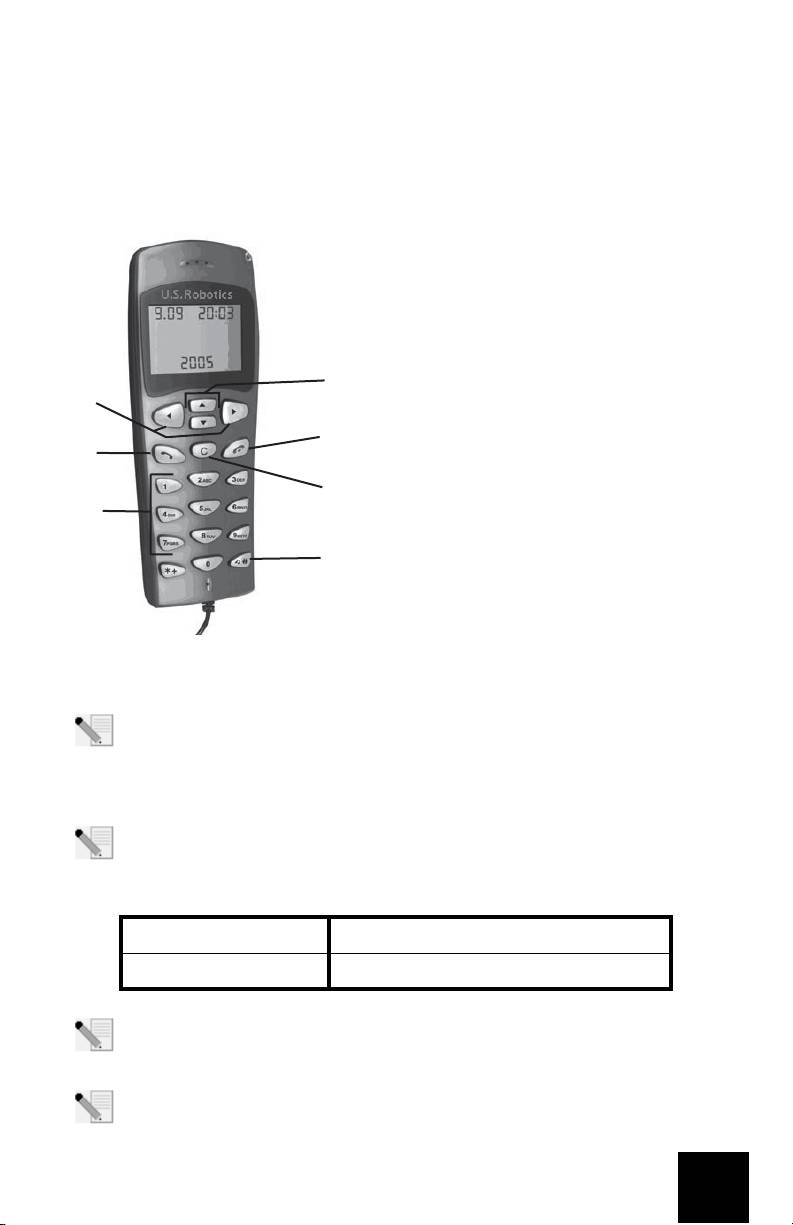
Contenu de la boîte
USR9600 USB Phone Guide d'installation
CD-ROM d'installation
Caractéristiques matérielles :
1. GAUCHE et DROIT : appuyez sur ces flèches pour
passer d'un onglet à l'autre dans le logiciel Skype.
2. ENVOYER : appuyez sur ce bouton pour effectuer
un appel.
3. 0 à 9 : appuyez sur les chiffres pour composer un
numéro de téléphone ou utiliser la numérotation
4
abrégée.
1
4. HAUT et BAS : appuyez sur ces flèches pour
5
parcourir la liste des contacts et des appels dans le
2
logiciel Skype.
6
5. FIN : appuyez sur ce bouton pour mettre fin à un
3
appel ou annuler une action.
7
6. EFFACER : appuyez sur ce bouton pour effacer tous
les chiffres saisis.
7. # : appuyez plusieurs fois sur ce bouton pour
accéder aux différentes sonneries.
Installation de l'USB Phone
Préparation à l'installation
Attention : Skype ne remplace pas les services de téléphonie classiques. Aucun des
services VoIP utilisés conjointement avec l'USB Phone ne permet d'effectuer des appels
vers les numéros de téléphone des services d'urgences (311, 911, 112, 999, etc.). Pour
appeler les services d'urgence, tels que la police, les pompiers et le SAMU, utilisez un téléphone
fixe.
Remarque : nous vous recommandons fortement de noter votre numéro de série avant
d'installer l'USB Phone. Vous trouverez ce numéro de série sur l'étiquette apposée à
l'arrière de votre USB Phone. Vous en aurez besoin si vous devez appeler notre service
d'assistance technique.
Numéro de modèle Numéro de série
USR9600
Remarque : assurez-vous de connaître la lettre correspondant à votre lecteur CD-ROM
avant de commencer à installer le nouveau produit. Vous en aurez besoin pour effectuer
correctement l'installation.
Remarque : les fonctions du clavier de l'USB Phone fonctionnent uniquement avec Skype.
Le système audio de l'USB Phone est compatible avec la plupart des applications Internet
de communication vocale.
15
Etape 1 : Installation du logiciel Skype
Remarque : l'installation s'effectue sous Windows. Si vous avez déjà installé le logiciel
Skype, passez à l'étape 2.
• Insérez le CD-ROM d'installation U.S. Robotics dans le lecteur CD-ROM de votre ordinateur.
Remarque : si votre CD-ROM ne se lance pas automatiquement, cliquez sur Démarrer,
Exécuter et tapez D:\setup (ou la lettre correspondante de votre lecteur CD-ROM). Cliquez
ensuite sur OK.
• L'interface graphique utilisateur (GUI) du CD d'installation apparaîtra à l'écran. Si le
programme vous le demande, sélectionnez votre langue. Vous serez invité à lire l'accord de
licence. Lisez-le et cliquez sur Yes (Oui).
• Cliquez sur Install Skype (Installer Skype). Vous devez disposer d'une connexion Internet
pour télécharger ce logiciel à partir du site Web Skype. Suivez les instructions à l'écran pour
installer et lancer le logiciel Skype. Il vous faudra peut-être redémarrer votre ordinateur.
• Une fois le logiciel installé, vous devrez créer un compte Skype. Suivez les instructions
à l'écran. Une fois le compte créé, il se peut qu'un message apparaisse et indique qu'un
périphérique n'a pas été trouvé. Cliquez sur OK.
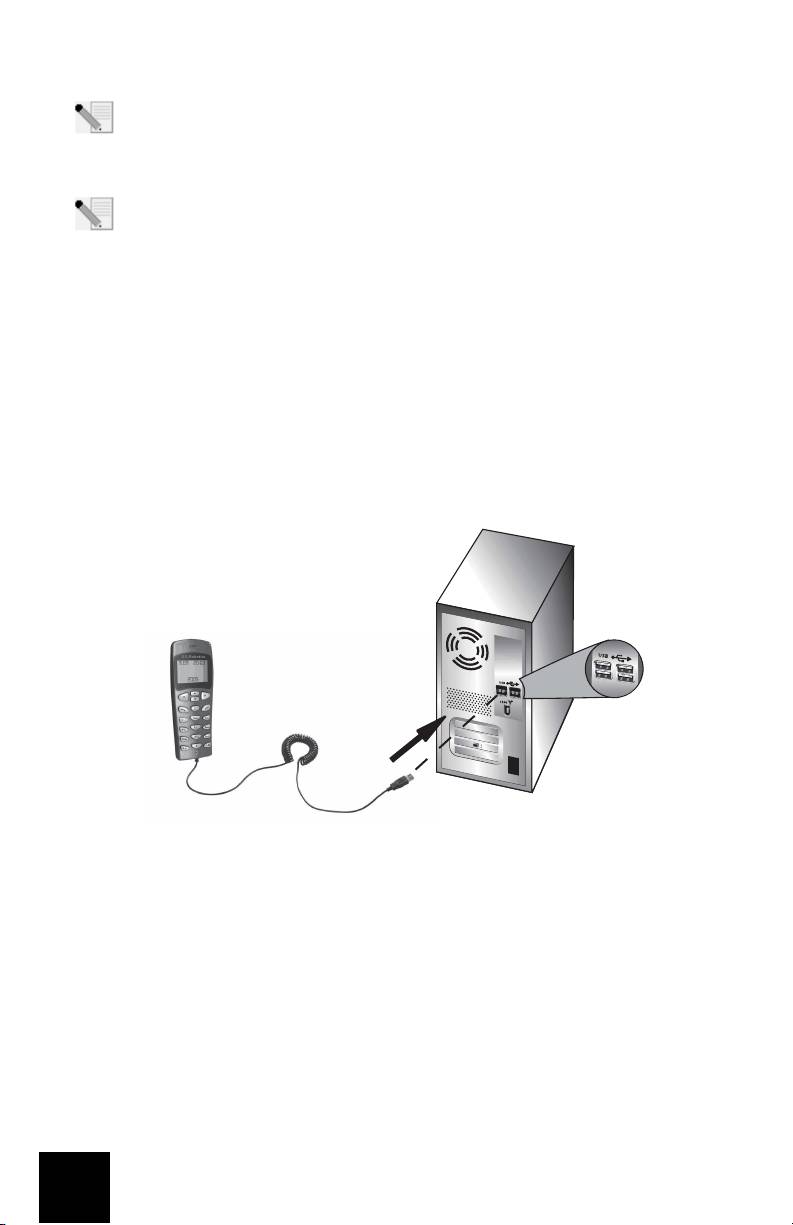
Etape 2 : Connexion de l'USB Phone
Branchez le câble USB de l'USB Phone sur un port USB de votre ordinateur.
Etape 3 : Installation de l'USB Phone
• Dans l'interface graphique utilisateur (GUI) du CD-ROM d'installation, cliquez sur
Install USB Phone (Installer USB Phone). Suivez les instructions à l’écran pour installer le
logiciel de l'USB Phone.
• Une fois le logiciel installé, un message apparaîtra et indiquera qu'un autre programme
veut accéder au logiciel Skype. Sélectionnez Allow this program to use Skype
(Autoriser l'accès à Skype pour ce programme), puis cliquez sur OK.
• Lorsque vous avez terminé, redémarrez votre ordinateur.
Félicitations ! La procédure d'installation est terminée. En cas de problème, reportez-vous
à la section Dépannage de ce guide.
Lancez un navigateur Web et enregistrez votre produit à l'adresse www.usr.com/productreg
16

Effectuer un appel
Pour appeler un autre utilisateur Skype :
Tout d'abord, vous devez avoir enregistré une liste de contact dans le logiciel Skype. Dans ce
dernier, cliquez sur Add a contact (Ajouter un contact) et suivez les instructions à l'écran pour
créer une liste de contact. Une fois la liste créée, procédez comme suit pour effectuer un appel :
1. Appuyez sur la flèche gauche du téléphone pour ouvrir le logiciel Skype.
2. Parcourez la liste des contacts en utilisant les flèches haut et bas du téléphone.
3. Sélectionnez le contact que vous souhaitez appeler et appuyez sur le bouton ENVOYER.
4. Une fois l'appel terminé, appuyez sur le bouton FIN pour raccrocher.
Répondre à un appel
Lorsque vous recevez un appel, appuyez sur le bouton ENVOYER du téléphone pour répondre.
Une fois l'appel terminé, appuyez sur le bouton FIN pour raccrocher.
Configuration de la numérotation abrégée
Pour configurer la numérotation abrégée, procédez comme suit :
1. Double-cliquez sur l'icône du logiciel Skype.
2. Cliquez avec le bouton droit de la souris sur un contact, puis cliquez sur Assign Speed-Dial
(Créer une numérotation abrégée).
3. Saisissez une touche de numérotation abrégée pour le contact sélectionné et cliquez sur OK.
4. Lorsque vous voulez appeler ce contact, appuyez sur la touche choisie puis sur le bouton
ENVOYER.
Paramètres
Volume
Pour régler le volume du téléphone, double-cliquez sur l'icône de l'USB Phone, située dans la
barre des tâches à côté de l'horloge, ou cliquez avec le bouton droit de la souris sur l'icône de
l'USB Phone. Ensuite, cliquez sur Volume Controls (Contrôle du Volume). Dans l'utilitaire de
l'USB Phone, déplacez le curseur vers la droite ou vers la gauche pour régler le volume des haut-
parleurs et du micro. Déplacez le curseur vers la gauche pour baisser le volume et vers la droite
pour l'augmenter.
Advanced (Avancé)
Cliquez avec le bouton droit de la souris sur l'icône de l'USB puis cliquez sur Advanced (Avancé).
La fenêtre Advanced properties (Propriétés avancées) s'ouvrira. Dans cette fenêtre, vous pouvez
configurer les options suivantes :
• Activez ou désactivez l'option Outgoing call displays Skype window (Affichage de la
fenêtre Skype sur appel sortant). Si vous activez cette option, une fenêtre Skype s'ouvrira
lorsque vous effectuez un appel.
• Activez ou désactivez la fonction Run when Windows starts (Lancement automatique au
démarrage de Windows). Si vous activez cette fonction, l'utilitaire de l'USB Phone se
lancera automatiquement lorsque vous allumez votre ordinateur.
• Choisissez une sonnerie parmi les 10 Ring styles disponibles. Vous pouvez également
changer de sonnerie en appuyant sur la touche #, en bas à droite de votre téléphone.
Lorsque vous avez fini de régler ces paramètres, cliquez sur OK pour que les modifications soient
prises en compte.
Select Language (Sélectionner la langue)
Cliquez avec le bouton droit de la souris sur l'icône de l'USB Phone puis cliquez sur Select
Language (Sélectionner la langue). Dans cette fenêtre, vous pouvez sélectionner la langue
d'affichage des menus de l'USB Phone.
17

Dépannage
Ce produit utilise l'API Skype mais n'est pas approuvé ni certifié par Skype.
Mon ordinateur ne détecte pas l'USB Phone.
Solution possible :
Assurez-vous que le câble USB du téléphone est bien branché sur un port USB de votre ordinateur.
Solution possible :
Une erreur est peut-être survenue au cours de l'installation. Débranchez le téléphone de votre
ordinateur puis recommencez la procédure d'installation.
Je souhaite utiliser mon USB Phone et les haut-parleurs en même temps.
Solution possible :
Pour utiliser l'USB Phone et les haut-parleurs de votre ordinateur en même temps, procédez
comme suit :
Cliquez sur Start, (Démarrer, Paramètres) Control Panel (Panneau de configuration) puis double-
cliquez sur Sounds and Audio Devices (Sons et périphériques audio). Cliquez sur l'onglet Audio
puis sélectionnez votre carte son en tant que périphérique par défaut (Default device) pour la
lecture des sons (Sound playback). Cliquez sur l'onglet Voice (Voix) puis sélectionnez le
périphérique audio USB (USB Audio Device) en tant qu'unité par défaut (Default device) pour la
lecture de la parole (Voice playback). Ensuite, double-cliquez sur l'icône du logiciel Skype située
dans la barre des tâches de votre ordinateur, à côté de l'horloge. Cliquez sur Tools, puis sur
Options. Cliquez sur Sound Devices et assurez-vous que l'option USB Audio Device est
sélectionnée dans les sections Audio In et Audio Out.
Remarque : ces instructions peuvent légèrement différer selon votre système
d'exploitation. Certaines versions de Windows ne possèdent pas l'onglet Voice (Voix). Si
c'est le cas, modifiez uniquement l'onglet Audio.
18
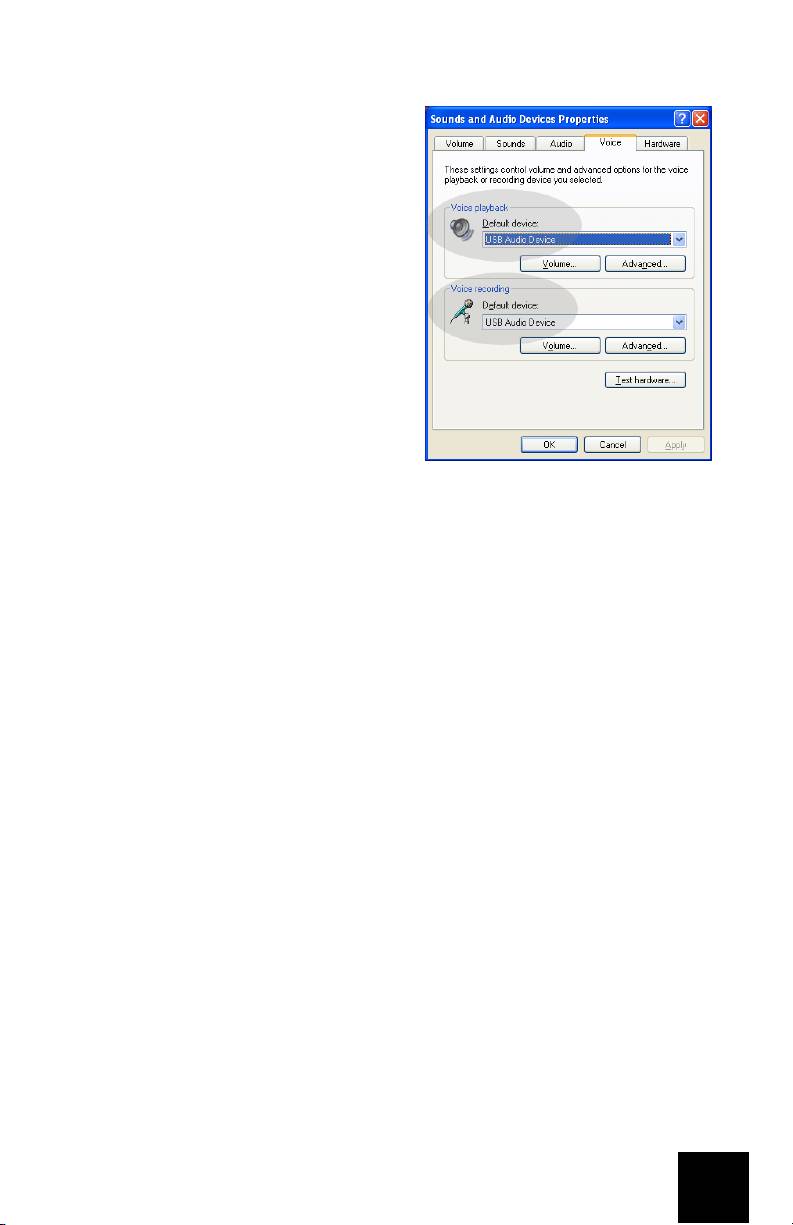
Je souhaite utiliser l'USB Phone pour tous les sons émis par mon ordinateur.
Solution possible :
Votre ordinateur n'utilise peut-être pas l'USB
Phone en tant que périphérique audio principal.
Cliquez sur Start, (Démarrer, Paramètres) Control
Panel (Panneau de configuration) puis double-
cliquez sur Sounds and Audio Devices (Sons et
périphériques audio). Cliquez sur l'onglet Voice
(Voix) et assurez-vous que l'option USB Audio
Device (Périphériques audio USB) est sélectionnée
pour la lecture de la parole (Voice playback)
et l'enregistrement vocal (Voice recording).
(Ces instructions peuvent légèrement différer selon
votre système d'exploitation.)
Au cours d'un appel, les sons sont émis par les haut-parleurs de mon
ordinateur.
Solution possible :
Double-cliquez sur l'icône du logiciel Skype située dans la barre des tâches de votre ordinateur, à
côté de l'horloge. Cliquez sur Tools, puis sur Options. Cliquez sur Sound Devices et assurez-vous
que l'option USB Audio Device est sélectionnée dans les sections Audio In et Audio Out.
Après être sorti du mode " Standby " (Veille) ou " Hibernate " (Hibernation)
de l'ordinateur, le microphone du téléphone USB ne fonctionne pas (mon
interlocuteur ne m'entend pas).
Solution possible :
Débranchez le téléphone USB du port, puis rebranchez-le.
Si vous rencontrez d'autres problèmes avec le logiciel Skype, visitez le site Web
http://support.skype.com
Nous nous efforçons constamment de fournir aux utilisateurs les renseignements les plus utiles.
Pour obtenir les informations de configuration ou de dépannage les plus récentes, visitez le site
Web d'U.S. Robotics à l'adresse http://www.usr.com/support
19
Table of contents
- Support
- Regulatory and Warranty
- Assistance
- Informations légales et sur la garantie
- Support
- Hinweise zu Vorschriften und Garantie
- Servizio assistenza
- Informazioni di conformità e garanzia
- Ondersteuning
- Reglementen en garantie
- Asistencia técnica
- Normativa y garantía
- Podpora
- Informace o předpisech a záruce
- Техническая поддержка
- Соответствие стандартам и гарантия
- Pomoc techniczna
- Przepisy i gwarancja
- Támogatás és segítségkérés
- Szabályozási és garanciális tudnivalók
- Destek
- Yasal ve Garanti
