
Apple Wireless Keyboard (2009): Using the Keys
Using the Keys: Apple Wireless Keyboard (2009)
Table of contents
- Using Your Apple Wireless Keyboard About the Indicator Light
- Updating Your Software
- Setting up a New Wireless Keyboard and a New Mac Replacing a USB Keyboard with an Apple Wireless Keyboard
- Pairing your Keyboard with a Different Mac Using Your Keyboard
- Using the Keys
- Renaming Your Keyboard Replacing the Batteries
- English
- Cleaning Your Keyboard Ergonomics Support
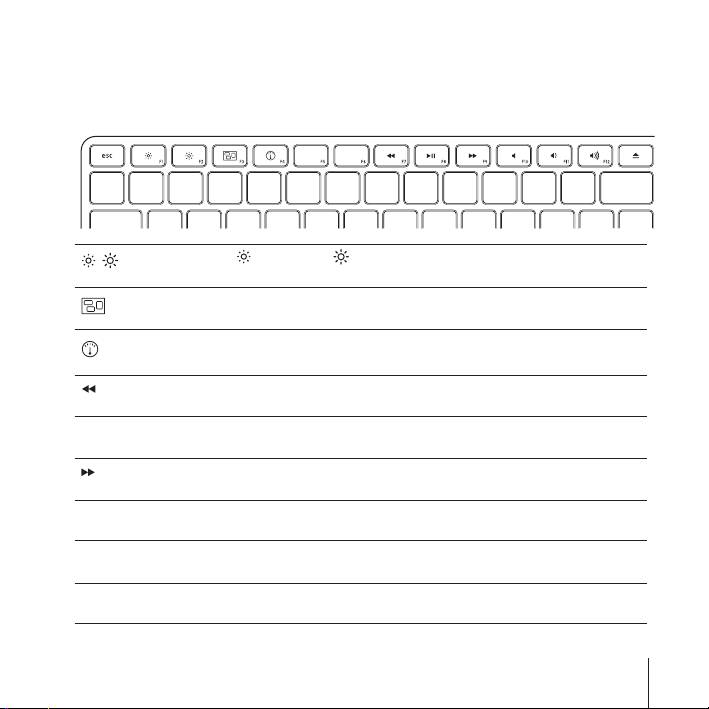
Using the Keys
Use the keys at the top of your keyboard to adjust the brightness of your display, open
Exposé, view Dashboard widgets, control the volume, and more.
Decrease ( ) or increase ( ) the brightness of your display.
Use Exposé to see all of the open windows on your desktop at once.
Open Dashboard to access your widgets. Get information about the weather,
stocks, and more.
Rewind or go to the previous song, movie, or slideshow.
Play or pause songs, movies, or slideshows.
’
Fast-forward or go to the next song, movie, or slideshow.
Mute the sound coming from the speakers or headphone port on your Mac.
—
Decrease (
–
) or increase (
-
) the volume of sound coming from the speakers or
–-
headphone port on your Mac.
Press and hold the Media Eject key to eject a disc.
C
English
7
