
Apple Wireless Keyboard (2009): Updating Your Software
Updating Your Software: Apple Wireless Keyboard (2009)
Table of contents
- Using Your Apple Wireless Keyboard About the Indicator Light
- Updating Your Software
- Setting up a New Wireless Keyboard and a New Mac Replacing a USB Keyboard with an Apple Wireless Keyboard
- Pairing your Keyboard with a Different Mac Using Your Keyboard
- Using the Keys
- Renaming Your Keyboard Replacing the Batteries
- English
- Cleaning Your Keyboard Ergonomics Support
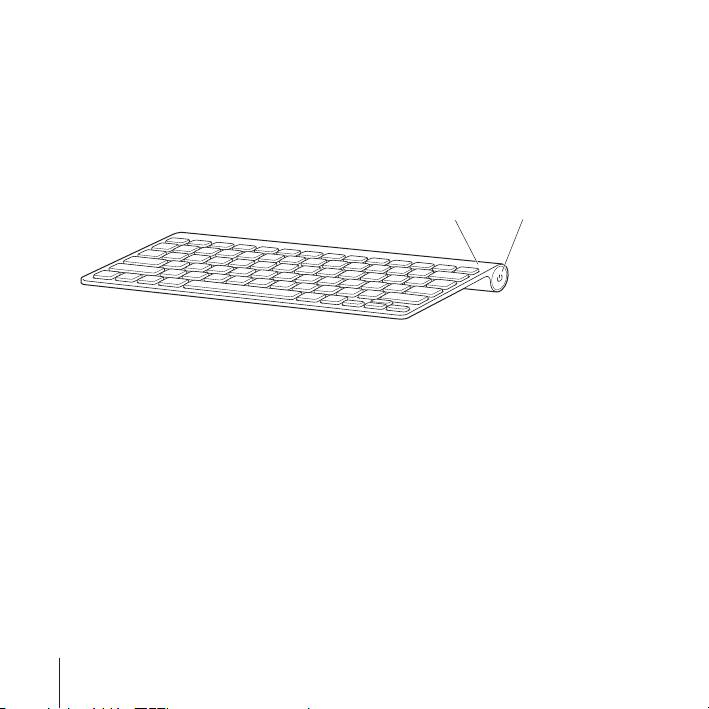
If you don’t pair your keyboard with your Mac within 3 minutes, the indicator light and
keyboard turn off to preserve battery life. Push and release the On/off (®
) switch to
turn your keyboard on again, allowing you to pair it with your Mac (see page 5).
Once you successfully pair your keyboard with your Mac, the indicator light glows
steadily for 3 seconds, and then turns off. If you push the On/ off (®
) switch and the
light doesn’t illuminate, you may need new or charged batteries.
Indicator light
On/off switch
Updating Your Software
To use your keyboard and its full range of features, update your Mac to Mac OS X
v10.5.8 or later and install the latest keyboard software.
To update to the latest version of Mac OS X, choose Apple (
) > Software Update from
the menu bar, and follow the onscreen instructions. When installation is complete and
you’ve restarted your Mac, use Software Update again to make sure all of the available
updates are installed.
4
English
