
chiliGREEN MS1733: CHAPTER 2
CHAPTER 2: chiliGREEN MS1733

CHAPTER 2
Introductions

2-2
Introductions
Congratulations on becoming a user of this notebook, the finely designed notebook. This
brand-new exquisite notebook will give you a delightful and professional experience in using
notebook. We are proud to tell our users that this notebook is thoroughly tested and certified by
our reputation for unsurpassed dependability and customer satisfaction
.
Manual Map
This User’s Manual provides instructions and illustrations on how to operate this notebook. It is
recommended to read this manual carefully before using this notebook.
Chapter 1, Preface
, gives users the basic safety information and caution that is interrelated to using
this notebook. It is recommended to read this information or caution when using this notebook for
the first time.
Chapter 2, Introductions
, includes the descriptions of all the accessories of this notebook. It is
recommended to check out if you have all the accessories included when you open the packing box.
If any of these accessories is damaged or missing, please contact the vendor where you purchased
this notebook. Also, this chapter provides the specification of this notebook, and introduces the
function buttons, quick launch buttons, connectors, LEDs and externals of this notebook.
Chapter 3, Getting Started
, gives the basic operation instructions on using keyboard, touchpad,
hard disk drive, and optical storage drive. Beside, the steps of installing and uninstalling the
battery; and the procedures of connecting the various external devices, communication devices,
and so on, are also provided to help users getting familiar with this notebook.
2-3
Introductions
Chapter 4, BIOS Setup, provides information on BIOS Setup program and allows you to configure
the system for optimum use.
Unpacking
First, unpack the shipping carton and check all items carefully. If any item contained is damaged or
missing, please contact your local dealer immediately. Also, keep the box and packing materials in
case you need to ship the unit in the future. The package should contain the following items:
Notebook
Quick Start Manual
AC/DC adapter and AC power
High-capacity Li-ion battery
cord
Carry bag (optional)
These accessories listed
All-in-one application disk, containing the full version of user’s manual,
above may change without
drivers, utilities, and optional recovery function, etc..
notice.

2-4
Introductions
Specification
Physical Characteristic
Dimension 414 (W) x 267 (D) x 33.2~36.7 (H) mm
Weight 2.8~2.95 KG (with battery)
CPU
®
Processor Type Intel
rPGA989 / Calpella
®
Support Processor Intel
Dual core processor (45nm)
L3 Cache 8MB
TDP (Thermal Design Power) 35W
Special Notification The actual processor preinstalled in the notebook depends on
the model you purchased. Please contact the local dealer for
detailed information.
Core Chips
®
Core Chips Intel
HM55
Special Notification The actual core chips preinstalled in the notebook depends on
the model you purchased. Please contact the local dealer for
detailed information.

2-5
Introductions
Memory
Technology DDR3 800 / 1066 Mhz
Memory DDR3 SO-DIMM X 2 slot
2/ 4 GB DDR3 SDRAM
Storage (Items listed here may vary depending on the model users purchased)
HDD form factor 2.5”
Main HDD 250/ 320/ 500 GB
Secondary HDD 250/ 320/ 500 GB
Optical Drive Device Blu-ray Combo/ DVD Super Multi (optional)
Special Notification The actual HDD and ODD preinstalled in the notebook
depends on the model you purchased, and may vary without
notice.
Power
AC/DC Adapter 90W, 19V
Input: 100~240V~2.0A 50~60Hz
Output: 19V
4.74A
Battery Type 6 cells / 9 cells (optional)
RTC Battery Yes

2-6
Introductions
I/O Port
Monitor (VGA) 15 pin D-Sub x 1
USB x 4 (USB version 2.0)
ESATA x 1
Line-in x 1
Headphone Out (Line-out) x 1 (SPDIF-out supported)
Mic-in x 1
RJ11 x 1
RJ45 x 1
HDMI x 1
Internal Microphone x 1
Card Reader x 1 (XD / SD/ MMC / MS/ MS Pro)
The supported memory cards may vary without notice.
Express Card
Slot Express Card Slot x 1 (optional)
Communication Port (Items listed here may vary without notice)
56K Fax/MODEM Optionally Supported
Wake on Ring Supported in AC mode
PTT Approval Yes
LAN Supported
Wake on LAN Supported in AC mode

2-7
Introductions
WfM 2.0 Supported
Wireless LAN Supported
Bluetooth Supported
Audio
Internal Speaker 2 speakers with housing
Sound Volume Adjust by volume button, K/B hot-key & SW
Video (optional)
Graphics ATI Mobility Radeon HD5730
VRAM DDR3 1G
Dual View Function External display devices will be auto detected when connected.
External Display Output Supported
Display
LCD Type 17.3" LED (16:9)
Brightness Brightness controlled by K/B hot-keys
WebCam
HD CMOS camera Supported

2-8
Introductions
Software & BIOS
USB Flash Boot Yes, USB floppy boot up DOS only
BIOS Fast Boot Support --- Yes
Others
Kensington Lock Hole x 1
Compliance WHQL
2-9
Introductions
Product Overview
This section provides the description of basic aspects of the notebook. It will help you to know
more about the appearance of this notebook before using it. Please be aware that the notebook
shown in this section may vary from the actual one that users purchased.
Top-open View
The figure of top-open view and description shown below will lead you to browse the main operating
area of your notebook.
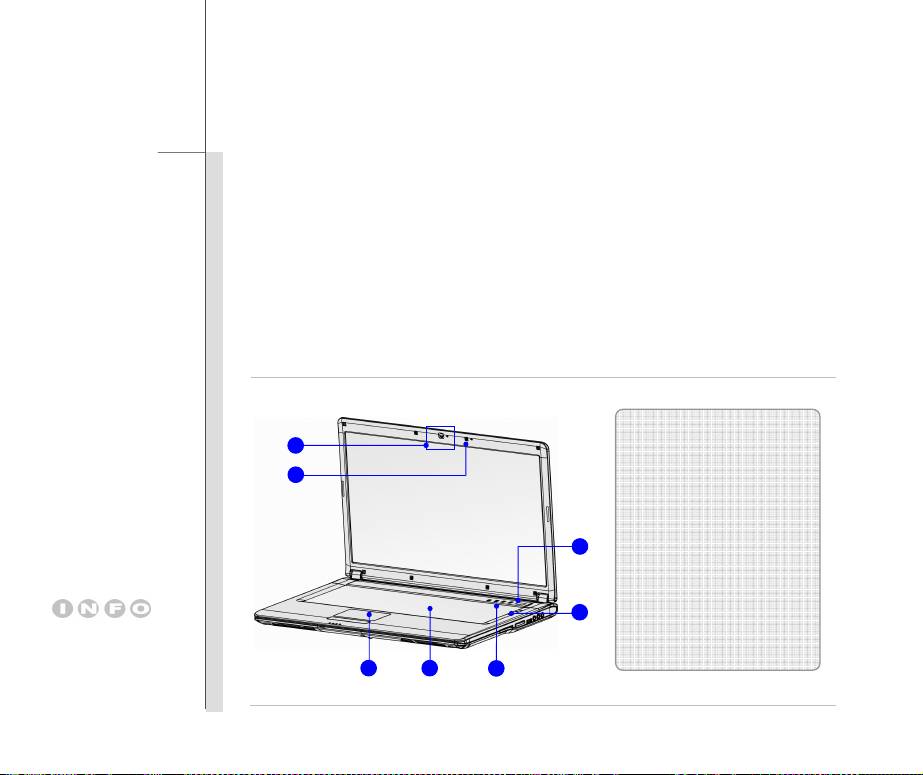
7
6
1. Power Button / Power LED
2. Status LED
3. Quick Launch Buttons
1
4. Keyboard
5. Touchpad
6. Internal Microphone
2
7. Webcam/ Webcam LED
The figures show here are
for reference only.
5 4
3
2-10
Introductions
1. Power Button / Power LED
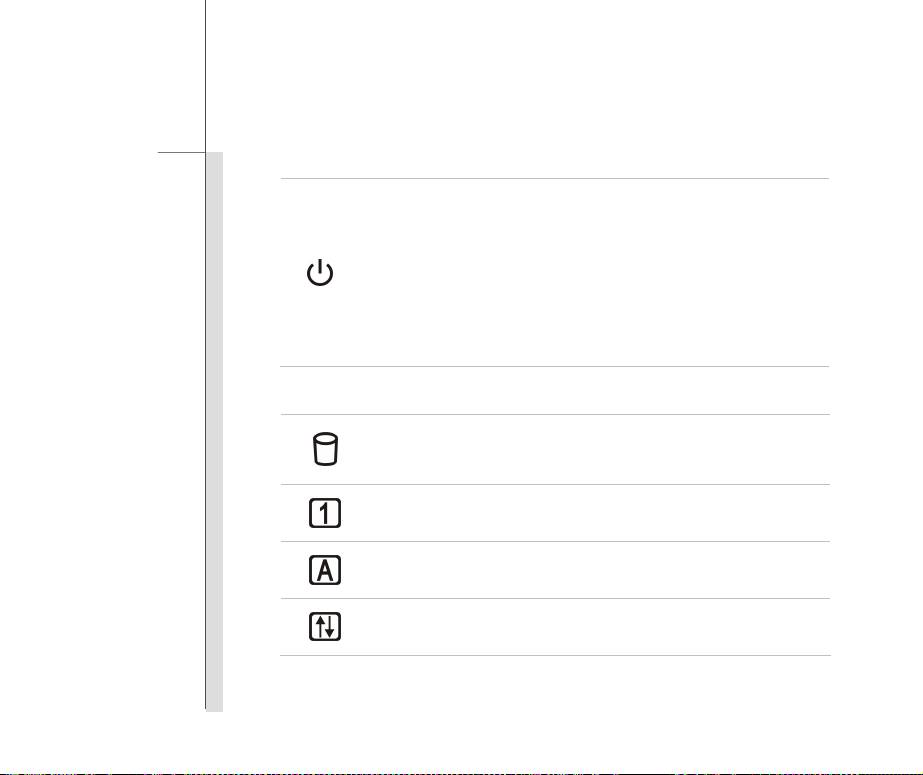
Power Button
Press the power button to turn the notebook power ON and OFF.
Press the power button to awake the notebook from the sleep state.
Power/ Power Saving function LED:
Glowing blue when the notebook power is turned on.
LED goes off when this function is turned off.
The Power and Sleep State LED blinks blue at the same time, when the
system is currently in the Sleep state.
2. Status LED
Hard Disk/ Optical Drive Device In-use (optional):
Blinking blue when the system is accessing the hard disk drive or the optical
drive device.
Num Lock: Glowing blue when the Num Lock function is activated.
Caps Lock: Glowing blue when the Caps Lock function is activated.
Scroll Lock: Glowing blue when the Scroll Lock function is activated.
2-11
Introductions
3. Quick Launch Buttons
Use the Quick Launch Buttons on the keyboard to activate the specific applications or tools.
With the help of these quick launch buttons, users will be able to do work more efficiently.
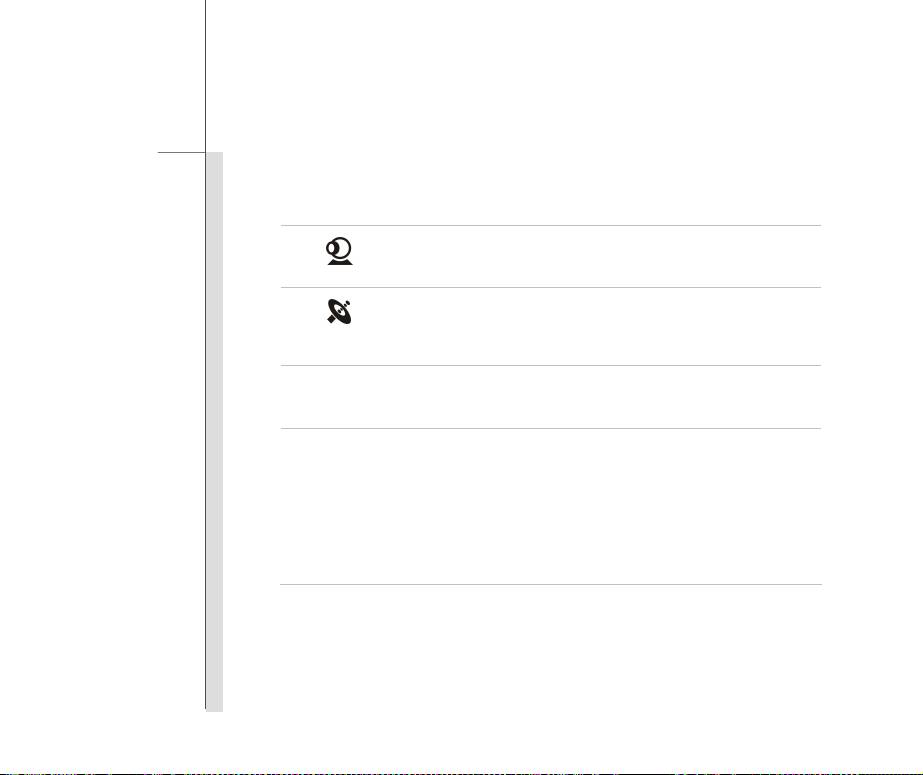
Press this button to turn the Webcam function on. Press again to
turn it off.
Webcam
Press this button repeatedly to turn the WLAN or Bluetooth
Wireless LAN/
function on or off recurrently
Bluetooth
P1
Press this button to launch the User Defined application.
User Defined
Press this button repeatedly to switch among various power saving
modes provided by ECO Engine, or to turn this function off
ECO
recurrently.
ECO Engine
Refer to the Power Management section in chapter 3 of this
(Power Saving)
manual for the detailed information of this ECO Engine, Power
Saving Function.
4. Keyboard
The built-in keyboard provides all the functions of a full-sized keyboard.

2-12
Introductions
5. Touchpad
This is the pointing device of the notebook.
6. Internal Microphone
There is built-in microphone and its function is the same with microphone.
7. Webcam/ Webcam LED (optional)
This built-in webcam can be used for picture taking, video recoding, conference, and any
other interactive applications.
Webcam LED indicator, next to the webcam, glows orange when webcam function is
activated; LED goes out when this function is turned off.
2-13
Introductions
Front Side View
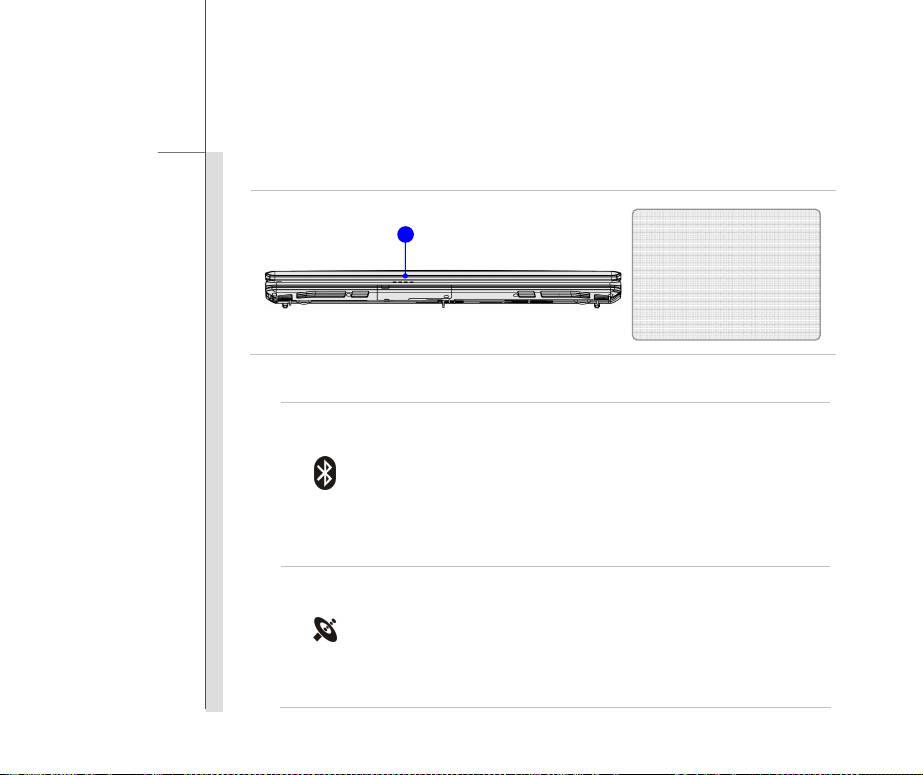
1
1. Status LED
1. Status LED
Bluetooth
Bluetooth LED indicator glows blue when Bluetooth function is enabled.
Note: The Bluetooth Function may be optionally supported depending on
the model users purchased.
Bluetooth
Warning: For flight safety consideration, make sure this LED indicator
goes out when you are in flight.
Contact the local distributor for further information if necessary.
Wireless LAN
This LED indicator glows blue when Wireless LAN function is enabled.
LED indicator goes out when this function is disabled.
Warning: For flight safety consideration, make sure this LED indicator
WLAN
goes out when you are in flight.
Contact the local distributor for further information if necessary.
2-14
Introductions
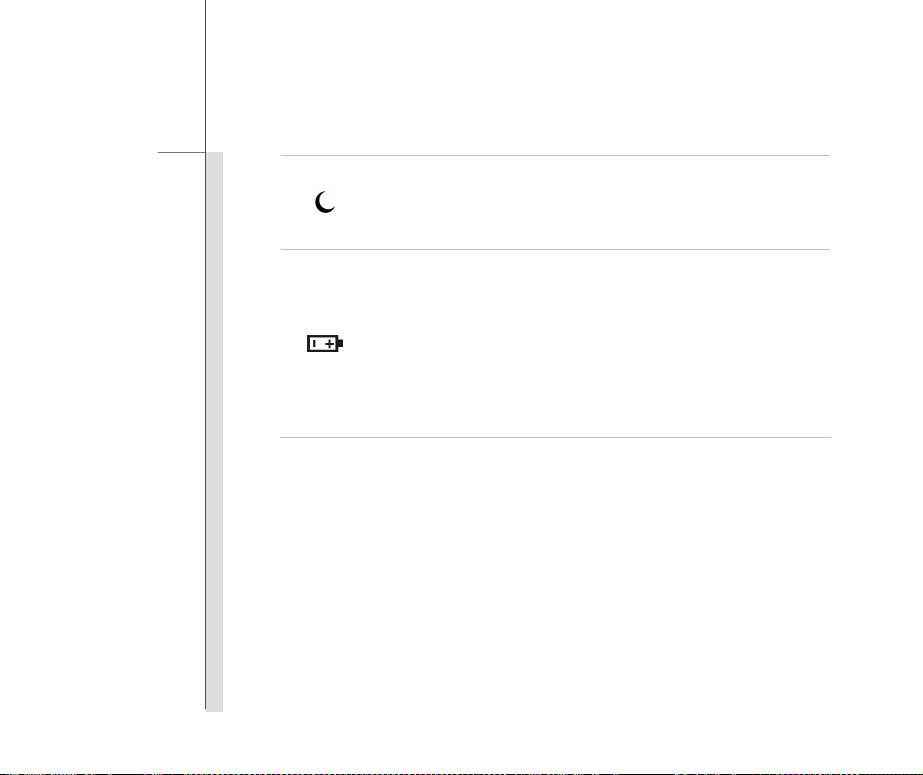
Sleep State:
Blinking blue when the system is in Sleep state.
Glowing blue when the system is activated.
LED goes out when the system is turned off.
Battery Status
Glowing blue when the battery is being charged.
Glowing amber when the battery is in low battery status.
Blinking amber if the battery fails and it is recommended to replace a new
battery. Consult the local dealer for purchasing an equivalent type of
battery recommended by the manufacturer.
Battery LED goes out when it is fully charged or when the AC/DC adapter
is disconnected.
2-15
Introductions
Right Side View
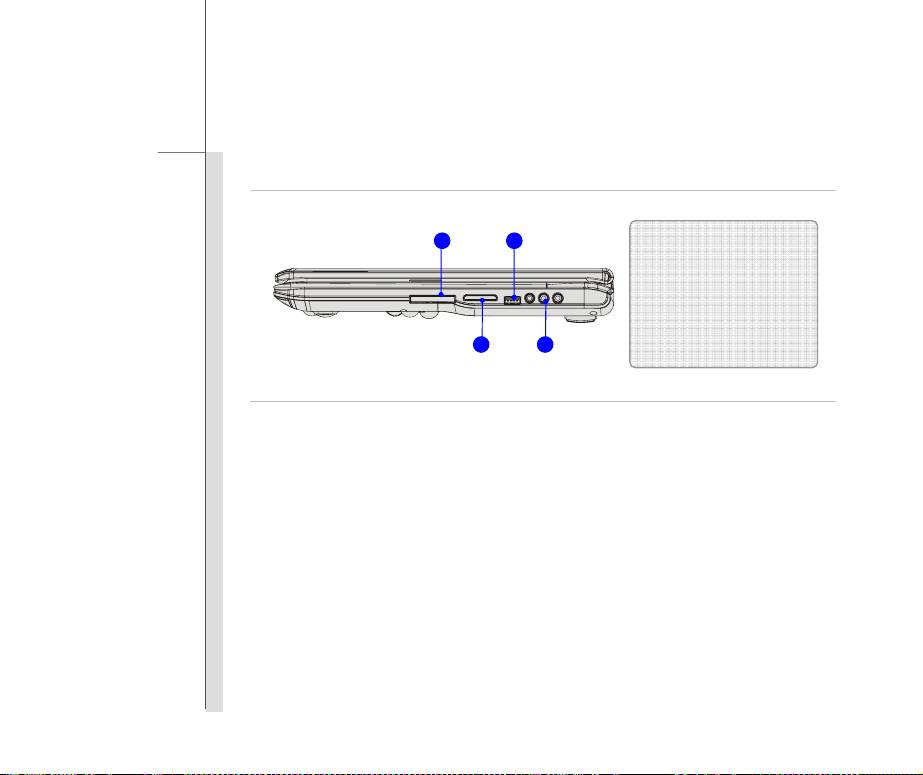
21
1. ExpressCard Slot
2. USB Port
3. Card Reader
4. Audio Port Connectors
3
4
1. ExpressCard Slot
The notebook provides an ExpressCard slot. The new ExpressCard interface is smaller and
faster than PC Card interface. The ExpressCard technology takes advantage of the
scalable, high-bandwidth serial PCI Express and USB 2.0 interfaces.
2. USB Port
The USB 2.0 port allows you to connect USB-interface peripheral devices, such as the mouse,
keyboard, modem, portable hard disk module, printer and more.
2-16
Introductions
3. Card Reader
The built-in card reader may support various types of memory card, such as MMC (Multi-Media
Card), XD (eXtreme Digital), SD (Secure Digital), SDHC (SD High Capacity), MS (Memory Stick)
or MS Pro (Memory Stick Pro) cards. Contact the local dealer for further and correct
information and be noted that the supported memory cards may vary without notice.
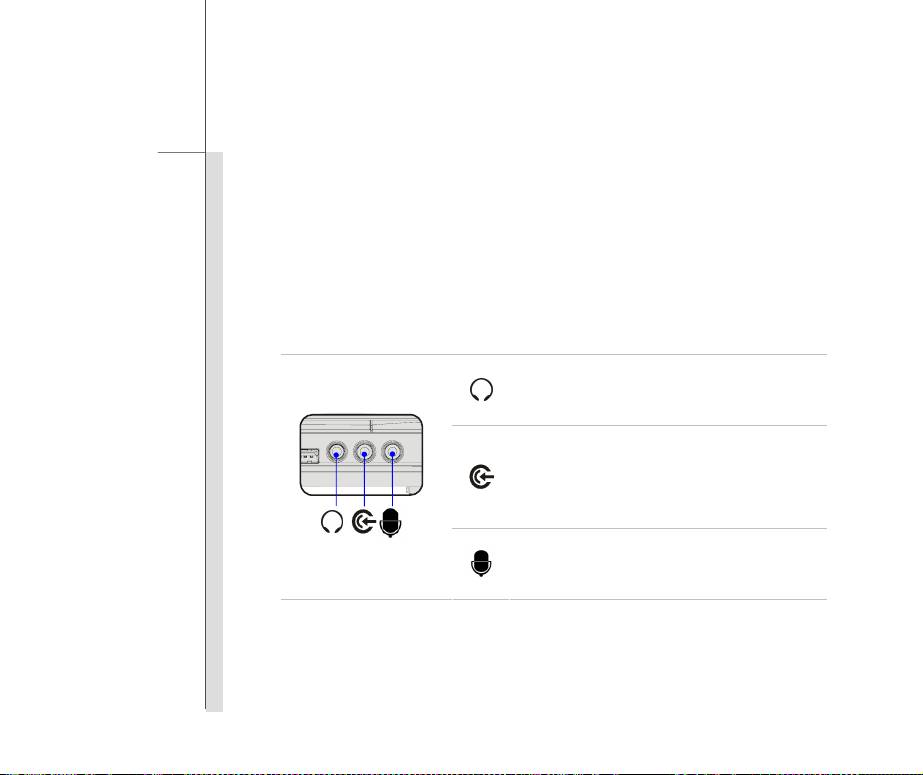
4. Audio Port Connectors
Make high quality sound blaster with stereo system and Hi-Fi function supported.
Headphone: A connector for speakers or
headphones.
Line In:
Used for an external audio device.
Connect the Rear Right and Left speakers
here.
Microphone: Used for an external microphone.
2-17
Introductions
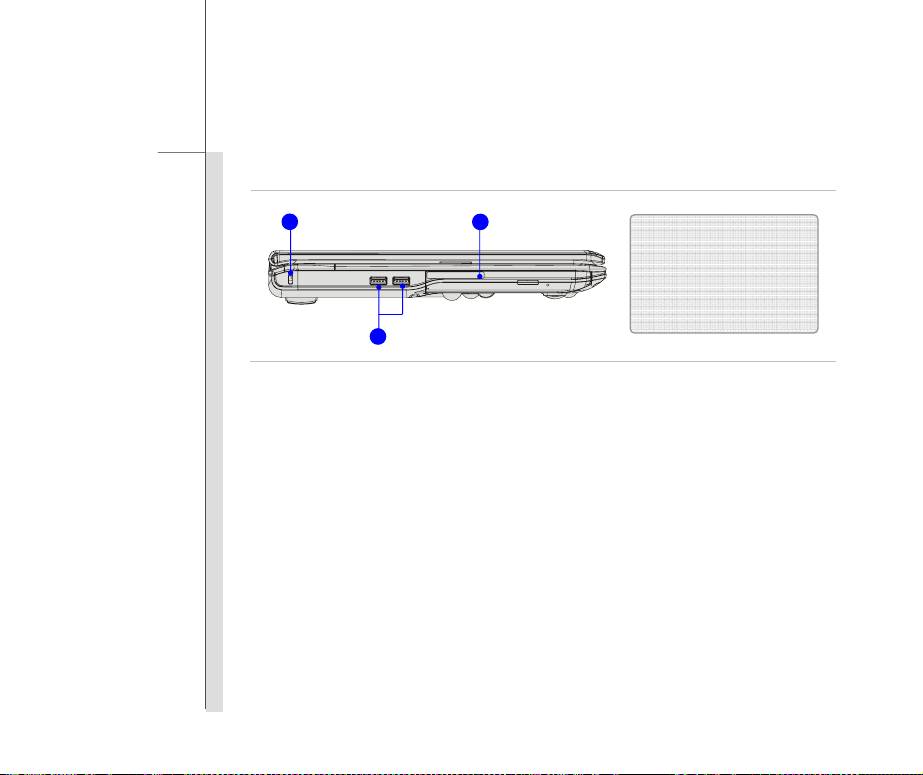
Left Side View
3
1
1. Optical Drive Device
2. USB Port
3. Kensington Lock
2
1. Optical Drive Device
This notebook is equipped with an optical drive device. The actual device preinstalled in the
notebook depends on the model you purchased.
2. USB Port
The USB 2.0 port allows you to connect USB-interface peripheral devices, such as the mouse,
keyboard, modem, portable hard disk module, printer and more.
3. Kensington Lock
This notebook provides a Kensington Lock hole, which allows users to secure the notebook in
place with a key or some mechanical PIN device and attached through a rubberised metal cable.
The end of the cable has a small loop which allows the whole cable to be looped around a
permanent object, such as a heavy table or other similar equipment, thus securing the notebook
in place.

2-18
Introductions
Rear Side View
1. RJ-11 Connector
2. ESATA Connector
21 3 4 5
3. USB Port
4. HDMI Connector
5. Ventilator
6. Power Connector
6 7 8
7. RJ-45 Connector
8. VGA Port
1. RJ-11 Connector
This notebook provides a built-in modem that allows you to connect an RJ-11 telephone line
through this connector. With the 56K V.90 modem, you can make a dial-up connection.
2. E-SATA (External Serial ATA)
The E-SATA Connector allows you to connect an external Serial ATA hard disk device. Users
can now utilize shielded cable outside the notebook to take advantage of the benefits the SATA
interface brings to storage.

2-19
Introductions
3. USB Port
The USB 2.0 port allows you to connect USB-interface peripheral devices, such as the mouse,
keyboard, modem, portable hard disk module, printer and more.
4. HDMI Connector
HDMI (High Definition Multimedia Interface Support) is a new interface standard for PCs,
displays and consumer electronics devices that supports standard, enhanced and
high-definition video, plus multi-channel digital audio on a single cable.
5. Ventilator
The ventilator is designed to cool the system. DO NOT block the ventilator for air circulation.
6. Power Connector
To connect the AC adapter and supply power for the notebook.
7. RJ-45 Connector
The 10/100/1000 Ethernet connector is used to connect a LAN cable for network
connection.
8. VGA Port
The 15-pin D-Sub VGA port allows you to connect an external monitor or other standard
VGA-compatible device (such as a projector) for a great view of the computer display.
2-20
Introductions
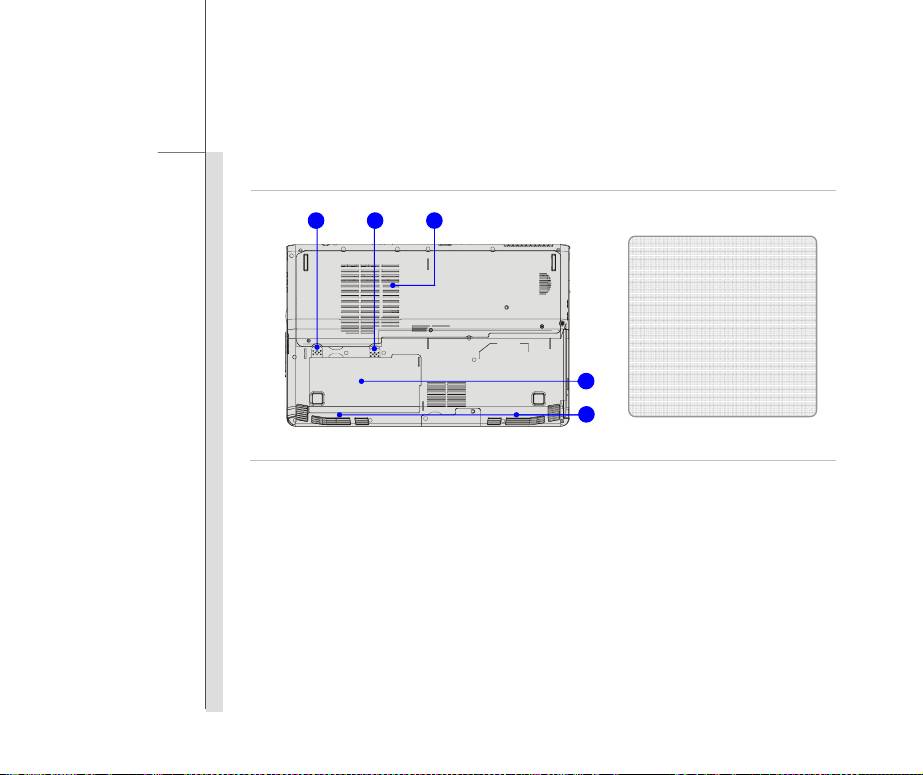
Bottom Side View
1 32
1. Battery Lock/Unlock Button
2. Battery Release Button
3. Ventilator
4. Battery Pack
5. Stereo Speakers
4
5
1. Battery Lock/Unlock Button
Battery cannot be moved when the button is positioned on lock status. Once the button is slid to
unlock position, the battery is removable.
2. Battery Release Button
It is a bounce-back device as a preparation for releasing the battery pack. Slide it with one hand
and pull the battery pack carefully with the other.

2-21
Introductions
3. Ventilator
The ventilator is designed to cool the system. DO NOT block the ventilator for air circulation.
4. Battery Pack
This notebook will be powered by the battery pack when the AC adapter is disconnected.
5. Stereo Speakers
Give high quality sound blaster with stereo system and Hi-Fi function supported.
