
chiliGREEN MS1753 – page 6
Manual for chiliGREEN MS1753
4-7
BIOS Setup
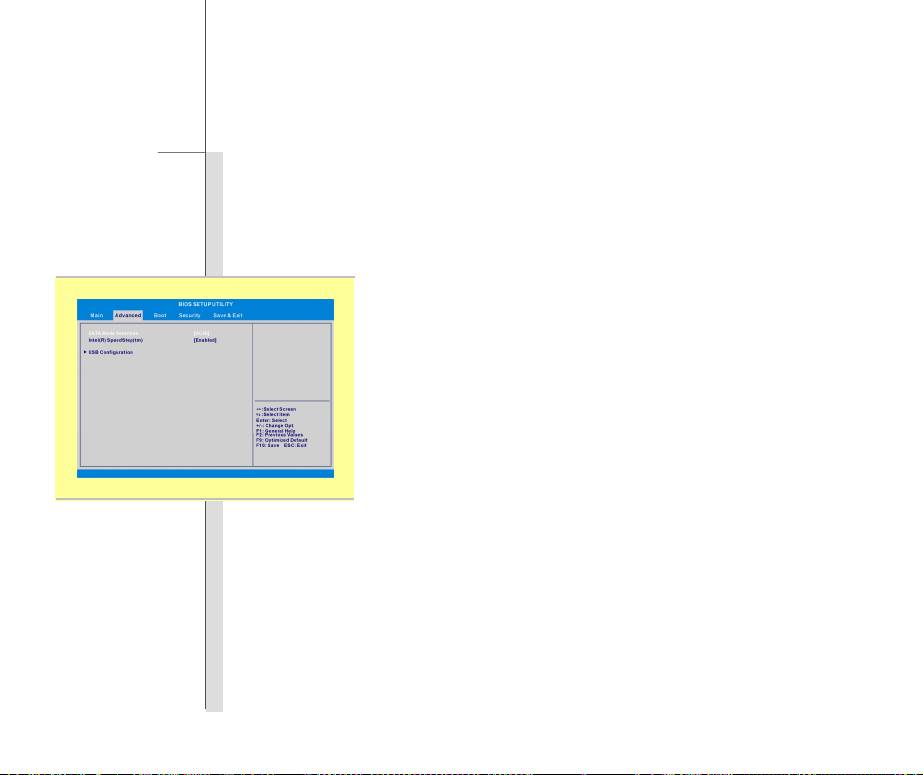
Advanced Menu
SATA Mode Selection
This item allows you to choose SATA device working in IDE mode or AHCI
mode.
Intel(R) SpeedStep(tm)
This item allows you to enable or disable Intel SpeedStep technology.
When set to Disabled, the system always operates in a conserve power
mode. If you want optimize the processor, set this item to Enabled, so
that the processor’s speed will be controlled by the use of your operating
system and applications. Setting options: Enabled and Disabled.
USB Configuration
Select this item to enter the sub-menu:
-- Legacy USB Support
Selecting Enabled allows users to use USB devices, such as mouse,
keyboard, or portable disk, in DOS system; or allows users to boot the
system by USB device. Setting options: Enabled, Disabled and
Auto.
4-8
BIOS Setup
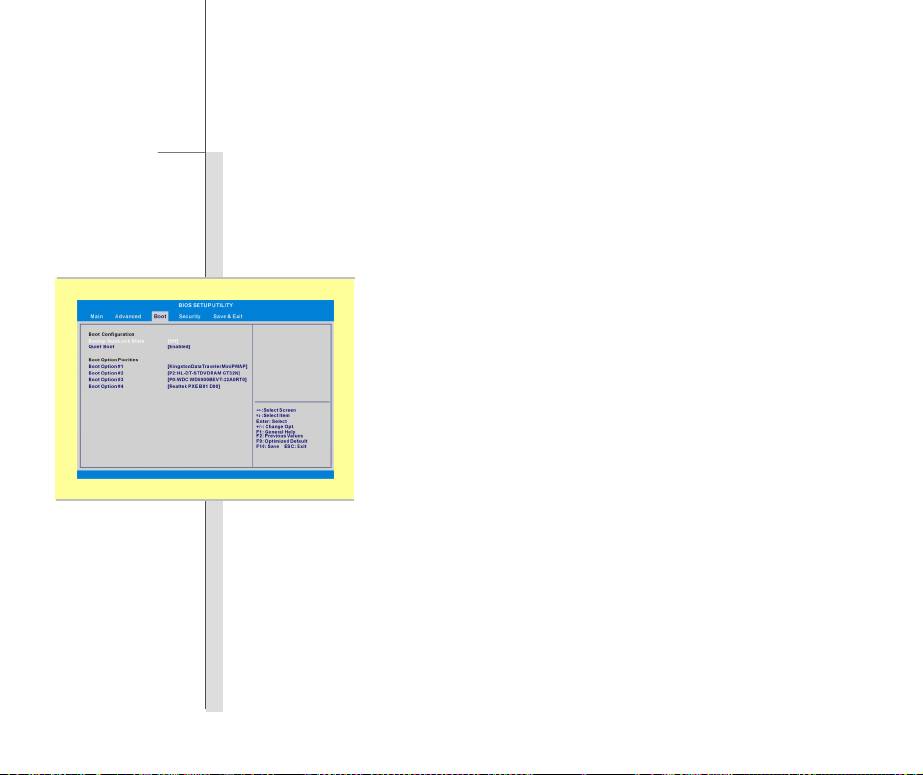
Boot Menu
Boot Configuration
Configure settings during system boot.
Bootup NumLock State
This setting is to set the Num Lock State when the system is powered on.
Setting to On will turn on the Num Lock key when the system is powered on.
Setting to Off will allow the users to use the arrow keys on the numeric
keypad.
Quiet Boot
This setting is to show POST message during POST process, if not, then it
will show OEM logo.
Boot Option Priorities
These items showing the sequence of boot devices where BIOS attempts
to load the disk operating system.

4-9
BIOS Setup
Security Menu
Administrator Password
When this item is selected, a message box shall appear on the screen as
below:
Type a maximum of twenty-digit password and press [Enter]. The
password entered now will replace any previously set password from
CMOS memory. You may also press [ESC] to abandon new password
setting.
Select User Password
to give or to abandon password setting.
Note that Administrator Password field allows users to enter and change
the settings of the BIOS SETUP UTILITY, while User Password field only
allows users to enter the BIOS SETUP UTILITY.
The Password Check
item is used to specify the type of BIOS password
protection that is implemented. Settings are described below:
The password is required only when users try to access to
Setup
BIOS SETUP UTILITY.
E
nter New Password

4-10
BIOS Setup
The password is required every time when the Notebook is
Always
powered on or when users try to access to BIOS SETUP
UTILITY.
To clear the setting of Administrator Password or User Password, please
press [Enter] under Administrator Password or User Password field
when the password setting pop-up dialogue appears. Please note that
when the Administrator Password is cleared, the User Password will be
cleared at the same time. A confirmation dialogue will pop up asking for
re-confirmation to disable the password setting. Once the password is
disabled, users can enter BIOS Setup menu without entering password
when the system is rebooted.

4-11
BIOS Setup
Save & Exit Menu
Save Changes and Reset
Save the changes you have made and reset the utility.
Discard Changes and Exit
Exit the utility without saving the changes you have made..
Load Setup Defaults
Select this item to load the default settings.
